attendance-management-checkin
 Royce Talents
Recreate my Android app from scratch called CHECKIN. Build it with Kotlin + Jetpack Compose + Material 3, CameraX, ML Kit, Supabase, Room, Coroutines, ViewModels and Repository architecture. The app is a real attendance management system with two separate roles: 1. STUDENT 2. LECTURER IMPORTANT: Build REAL functionality, not UI prototypes, simulations, fake data, random attendance, or placeholder camera/biometric features. CORE FEATURES: • Email/password authentication, verification, password reset and persistent login. • Lecturer can create an institution using: - School name - Unique permanent institution code • Students and lecturers can join an existing institution using the code. • Institution data must be stored in Supabase and work across different devices. • Never use hardcoded/demo institutions or randomly assign users to institutions. • Use one canonical institution ID for all users, courses, sessions and attendance. DATABASE: Create Supabase tables for: - profiles - institutions - institution_members - courses - attendance_sessions - attendance_records Use proper foreign keys, unique constraints and Row Level Security. LECTURER: - Create/manage courses - Create attendance sessions - Generate QR attendance - Start live attendance - Use a REAL CameraX camera to detect multiple people - Show detected people count - Support biometric/face verification where implemented - Support GPS/geofence attendance - View attendance records and statistics - Export attendance STUDENT: - View institution and courses - See active attendance sessions from Supabase - Scan REAL QR codes using CameraX - Use REAL face/biometric verification - Use GPS verification when required - View attendance history and statistics CROSS-DEVICE FLOW: Lecturer creates session → Supabase → Student device retrieves session → Student verifies using QR/face/GPS → AttendanceRecord created → Supabase → Lecturer sees updated attendance. A student from another institution MUST NOT see or join the session. GPS must only be required when the session actually requires GPS. CAMERA: Use real CameraX frame processing. Do not simulate faces, counts or attendance. Do not create fake biometric matches. OFFLINE: Use Room as a local cache. Queue attendance when offline. Sync with Supabase when internet returns. Never report a failed sync as successful. UI: Create a professional modern Material 3 interface with separate Student and Lecturer dashboards, loading states, errors, empty states, permissions and proper navigation. IMPORTANT: Do not claim a feature is complete unless it is actually implemented and tested. Before completion: - Build the project - Fix compilation errors - Verify Supabase/database integration - Verify authentication - Verify institution joining - Verify cross-device sessions - Verify QR - Verify GPS - Verify biometric/face functionality - Verify lecturer multi-person camera - Verify attendance recording - Verify offline sync - Verify security/RLS At the end, give me a short report showing each major feature as: IMPLEMENTED / PARTIALLY IMPLEMENTED / NOT IMPLEMENTED and mention the exact files/components involved.

Comments (0)
Sign in to leave a comment
System Requirements
System Requirements Document for attendance-management-checkin
1. Introduction
CHECKIN is a real Android attendance-management application for educational institutions. It enables lecturers to create and operate attendance sessions and enables students to verify their attendance through real QR scanning, face/biometric verification where implemented, and GPS/geofence verification when required by a session.
The application serves exactly two active human roles:
- Student
- Lecturer
CHECKIN must provide real, cross-device functionality backed by Supabase. It must not use fake institutions, simulated attendance, random attendance assignment, placeholder cameras, simulated face detection, fake biometric matches, or prototype-only workflows.
2. System Overview
CHECKIN is a Kotlin Android application built from scratch using Jetpack Compose and Material 3. It uses Supabase for authentication, cloud data storage, synchronization, and security enforcement; Room for local caching and offline attendance queues; CameraX and ML Kit for real camera-frame processing; Coroutines for asynchronous work; and ViewModel plus Repository architecture for maintainable application state and data access.
The application provides separate Student and Lecturer experiences:
- Students authenticate, join an institution, view their institution and courses, retrieve active attendance sessions from Supabase, scan real QR codes, complete required verification, and review personal attendance history and statistics.
- Lecturers authenticate, create or join institutions, manage courses, create attendance sessions, generate QR attendance codes, start live attendance, operate real CameraX multi-person detection, view attendance records and statistics, and export attendance data.
All users, courses, attendance sessions, and attendance records must be connected through one canonical institution ID. Institution isolation must be enforced by Supabase Row Level Security so that students cannot view or join sessions belonging to another institution.
2a. Product Interpretation and Delivery Boundary
CHECKIN is an application-owned Android experience with application-owned identity continuity through email/password authentication and persistent login.
Supabase is the authoritative cloud backend for authentication and shared attendance data. Room is a local cache and offline queue, not an alternative system of record. A locally queued attendance action must remain visibly pending until Supabase confirms the write. A failed or rejected sync must never be presented as successful attendance.
The current scope includes real attendance operations only. The application must use actual device capabilities where applicable:
- CameraX must process live camera frames.
- ML Kit must be used for real detection and QR processing.
- Face/biometric verification must use real implemented verification behavior and must not produce fabricated matches.
- GPS/geofence verification must only be requested for sessions configured to require GPS.
- Camera, location, and biometric permissions must be requested only when needed for an accepted workflow.
The application does not include unrelated academic administration, student grading, messaging, payment, scheduling, or social-network features.
2b. Page Content and Component Coverage
Landing
- Access: Anonymous.
- Information and state: Introduces CHECKIN as a real attendance-management system for Students and Lecturers.
- Primary actions: Continue to Login.
- Supporting actions: Explain that attendance can require QR, face/biometric, and GPS verification depending on the active session.
- Components: Product identity, concise capability summary, role-neutral access call to action.
- States: Static entry state; navigation failure must provide a retry action.
Login
- Access: Anonymous.
- Information and state: Email/password sign-in and account enrollment entry state.
- Primary actions: Sign in using email and password.
- Supporting actions: Begin email/password enrollment, resend or continue email verification where applicable, navigate to Account Recovery.
- Components: Email field, password field, sign-in action, enrollment action, verification status messaging, persistent-login restoration handling.
- States: Loading during authentication; invalid credential error; unverified-email state; connectivity error; successful sign-in routes the user to Institution if no institution membership exists or to the applicable role dashboard if membership exists.
Account Recovery
- Access: Anonymous.
- Information and state: Password-reset request status.
- Primary actions: Submit an email address to request password reset.
- Supporting actions: Return to Login.
- Components: Email input, reset request action, delivery confirmation or error message.
- States: Loading, successful reset-request acknowledgement, malformed email error, unknown or rejected request error, network failure with retry.
Student Dashboard
- Access: Role-restricted to Student.
- Information and state: Student institution summary, enrolled institution context, course summary, active attendance session summary, and sync state.
- Primary actions: Open active sessions, scan QR, review courses, and open My Attendance.
- Supporting actions: Open Institution and view pending offline attendance queue status.
- Components: Full-width live-status strip, active-session rows, institution indicator, course ledger, queued-sync indicator, bottom navigation.
- States: Loading institution/session data; no institution membership routes to Institution; empty courses; no active sessions; Supabase retrieval error; pending or failed sync state.
Lecturer Dashboard
- Access: Role-restricted to Lecturer.
- Information and state: Lecturer institution summary, courses, session activity, attendance summaries, and sync state.
- Primary actions: Create a course, create a session, open Session Details, and open Attendance Records.
- Supporting actions: Open Institution, Courses, and Live Attendance for an active session.
- Components: Full-width live-status strip, course/session ledger, attendance indicators, lecturer rail navigation on wide screens.
- States: Loading; no institution membership routes to Institution; empty course list; no sessions; data error with retry; pending or failed sync display.
Institution
- Access: Logged-in Student or Lecturer.
- Information and state: Current institution membership, institution name, permanent institution code, and canonical institution ID association.
- Primary actions: Lecturer creates an institution using School name and a unique permanent institution code; Student or Lecturer joins an existing institution using its code.
- Supporting actions: View current institution membership result and return to the appropriate dashboard.
- Components: School name field, institution code field, create action, join action, membership confirmation, institution-isolation error message.
- States: Validation errors; duplicate permanent-code error; invalid or unavailable code error; network error; successful creation or join binds the profile, membership, courses, sessions, and attendance work to one canonical institution ID.
- Restrictions: No hardcoded, demo, automatically assigned, or random institutions may appear.
Courses
- Access: Logged-in Student or Lecturer.
- Information and state: Courses belonging to the current canonical institution ID.
- Primary actions: Lecturer creates and manages courses; Student views available institution courses.
- Supporting actions: Open a course-related session context where available.
- Components: Ruled course ledger, course creation and management controls for Lecturer, read-only course rows for Student.
- States: Loading, empty course list, create/manage validation error, Supabase retrieval error, successful update confirmation.
- Restrictions: Courses must not cross institution boundaries.
New Session
- Access: Role-restricted to Lecturer.
- Information and state: Attendance-session configuration for a selected course within the lecturer’s institution.
- Primary actions: Create an attendance session.
- Supporting actions: Set whether GPS/geofence verification is required for the session and proceed to Session Details.
- Components: Course selector, session creation fields, GPS-required control, validation feedback.
- States: Loading courses; no courses available; invalid submission; Supabase write error; successful session creation.
- Restrictions: The session must use the course’s canonical institution ID. GPS must not be required unless the lecturer configures the session to require it.
Session Details
- Access: Logged-in Student or Lecturer.
- Information and state: Session identity, course context, institution context, active/closed state, required verification conditions, QR code state, and synchronization status.
- Primary actions: Lecturer generates QR attendance and starts live attendance; Student views an active session belonging to the same institution.
- Supporting actions: Lecturer navigates to Live Attendance; Student proceeds to Scan QR or Verify Attendance when eligible.
- Components: Session state label, QR attendance code display, verification requirement checklist, session metadata, active/closed status, sync indicator.
- States: Loading; session unavailable; inactive or closed session; insufficient institution membership; QR generation failure; Supabase retrieval error.
- Restrictions: A Student from another institution must not see or join this session.
Live Attendance
- Access: Role-restricted to Lecturer.
- Information and state: Live attendance session state, real CameraX preview, ML Kit multi-person detection boxes, detected people count, and live attendance updates.
- Primary actions: Start and operate live attendance monitoring for an active session.
- Supporting actions: Grant camera permission, view detected people count, open related attendance records.
- Components: CameraX preview, ML Kit detection overlay, large detected-people counter, active-session state strip, permission explanation, error/retry controls.
- States: Camera permission required or denied; camera unavailable; ML Kit processing error; no detected people; changing real detected count; active live-session state; session closed state.
- Restrictions: Detection count must come from real CameraX frame processing and ML Kit analysis. No simulated faces, counts, or attendance data may be displayed.
Scan QR
- Access: Role-restricted to Student.
- Information and state: Real QR scanner state for an active eligible attendance session.
- Primary actions: Scan a real session QR code using CameraX.
- Supporting actions: Grant camera permission, retry scanning, continue to Verify Attendance after a valid session QR result.
- Components: CameraX preview, ML Kit QR analyzer, squared signal corners, scanner status, session-match result, queue/sync status.
- States: Camera permission required or denied; camera unavailable; scanning; unreadable code; invalid code; session inactive; institution mismatch; successful same-institution session recognition.
- Restrictions: QR scanning must use real CameraX camera frames. The app must reject QR results for sessions outside the Student’s canonical institution.
Verify Attendance
- Access: Logged-in Student or Lecturer.
- Information and state: Attendance verification checklist for a selected active session, including QR, face/biometric, GPS/geofence, and sync outcome.
- Primary actions: Student completes required real verification and submits attendance.
- Supporting actions: Lecturer can view the session’s configured verification requirements; Student can grant required permissions and retry failed verification.
- Components: QR completion status, face/biometric verification state where implemented, location/geofence verification state when required, permission guidance, submit state, queued/offline stamp, confirmed-record state.
- States: Verification pending; biometric unavailable or failed; location permission denied; GPS unavailable; outside-geofence failure where enforced; GPS skipped when the session does not require GPS; offline queued state; Supabase-confirmed attendance state; Supabase-rejected or failed-sync state.
- Restrictions: Face/biometric verification must be real where implemented. GPS verification must be requested only for sessions that require GPS. An AttendanceRecord must not be shown as confirmed until Supabase confirms it.
Attendance Records
- Access: Role-restricted to Lecturer.
- Information and state: Attendance records, session/course context, attendance statistics, sync outcomes, and export availability.
- Primary actions: View attendance records and statistics; export attendance.
- Supporting actions: Filter or open session-related record context only within accepted course and session data.
- Components: Attendance ledger, statistics summary, export action, record status labels, queued/failed-sync indicators.
- States: Loading; no attendance records; export generation failure; retrieval error; successful export completion; records awaiting Supabase synchronization.
- Restrictions: Lecturer records must be scoped to the lecturer’s institution and authorized sessions/courses.
My Attendance
- Access: Role-restricted to Student.
- Information and state: Student’s own attendance history, statistics, record status, and pending sync state.
- Primary actions: Review attendance history and statistics.
- Supporting actions: Open a relevant active-session context when appropriate.
- Components: Personal attendance ledger, statistics summary, confirmed/queued/failed record labels.
- States: Loading; no attendance history; local queued attendance; sync failure; Supabase retrieval error; successful confirmed-record display.
- Restrictions: A Student may view only their own attendance records within their institution.
3. Functional Requirements
FR-01 — Android Application Architecture
As a Student or Lecturer, I should use CHECKIN as a real Android application so that attendance work is performed through production-oriented functionality rather than a prototype.
- Provenance: Explicit.
- Trigger/Input: User installs and opens the Android application.
- Requirement: The application shall be implemented using Kotlin, Jetpack Compose, Material 3, CameraX, ML Kit, Supabase, Room, Coroutines, ViewModels, and Repository architecture.
- Observable result: The application provides functioning Android workflows backed by real device services and Supabase.
- Failure/recovery: Initialization and dependency failures must present an error state and retry path rather than fabricated data.
- Continuation: The user proceeds through authentication or persistent-session restoration.
FR-02 — Email/Password Authentication and Persistent Login
As a Student or Lecturer, I should authenticate with email and password so that my identity and attendance work remain associated with the correct account.
- Provenance: Explicit; enrollment and returning verification mechanics are required inference.
- Trigger/Input: User enters email and password from Login.
- Requirement: The system shall support email/password enrollment, sign-in, email verification, password reset, and persistent login across app restarts.
- Observable result: A verified authenticated user enters the appropriate institution or dashboard workflow.
- Failure/recovery: Invalid credentials, unverified email, rejected authentication, and network failures must be shown honestly with a retry, verification, or recovery path.
- Continuation: A user without an institution membership proceeds to Institution; a user with membership proceeds to the role-appropriate dashboard.
FR-03 — Password Reset
As a Student or Lecturer, I should request a password reset when I forget my password so that I can regain account access.
- Provenance: Explicit.
- Trigger/Input: User submits an email address from Account Recovery.
- Requirement: The system shall request a password-reset process through the configured authentication backend.
- Observable result: The user receives a truthful reset-request acknowledgement or an error.
- Failure/recovery: Invalid email, rejected request, or connectivity failure must not be represented as successful delivery and must allow retry.
- Continuation: User returns to Login after completing the external reset process.
FR-04 — Institution Creation
As a Lecturer, I should create an institution using a School name and unique permanent institution code so that my courses, sessions, and attendance belong to one institution.
- Provenance: Explicit.
- Trigger/Input: Authenticated Lecturer enters School name and institution code.
- Requirement: The system shall create an institution in Supabase and bind the Lecturer through institution membership to the institution’s canonical institution ID.
- Observable result: The institution and membership are stored in Supabase and available across devices.
- Failure/recovery: Duplicate code, validation failure, authorization failure, and network failure must be shown without creating a false institution.
- Continuation: Lecturer proceeds to Lecturer Dashboard or Courses.
FR-05 — Institution Joining
As a Student or Lecturer, I should join an existing institution using its institution code so that I can access that institution’s allowed courses and attendance work.
- Provenance: Explicit.
- Trigger/Input: Authenticated user enters an institution code.
- Requirement: The system shall validate the institution code against Supabase and create an institution membership associated with the institution’s canonical institution ID.
- Observable result: The user sees the joined institution and can access role-appropriate same-institution work.
- Failure/recovery: Invalid, unavailable, or unauthorized codes must produce an error without membership creation.
- Continuation: Student proceeds to Student Dashboard; Lecturer proceeds to Lecturer Dashboard.
- Constraint: The application shall never use hardcoded/demo institutions or randomly assign a user to an institution.
FR-06 — Canonical Institution Isolation
As a Student or Lecturer, I should have all attendance data linked to one canonical institution ID so that institutions remain isolated.
- Provenance: Explicit.
- Trigger/Input: Any course, session, or attendance read/write operation.
- Requirement: Profiles, memberships, courses, attendance sessions, and attendance records shall use the applicable canonical institution ID through proper foreign-key relationships.
- Observable result: Users see only authorized data belonging to their institution.
- Failure/recovery: Cross-institution access attempts must be denied and must not expose data or create attendance.
- Continuation: Authorized users continue with the requested same-institution workflow.
FR-07 — Course Management and Viewing
As a Lecturer, I should create and manage courses so that attendance sessions can be organized within my institution.
- Provenance: Explicit.
- Trigger/Input: Lecturer opens Courses and submits course management actions.
- Requirement: The system shall allow Lecturers to create and manage courses within their institution.
- Observable result: Updated course information is stored in Supabase and appears in authorized course views.
- Failure/recovery: Invalid input, unauthorized action, and failed synchronization must be displayed honestly.
- Continuation: Lecturer can create a session for an available course.
As a Student, I should view my institution’s courses so that I can understand the course context of attendance sessions.
- Provenance: Explicit.
- Trigger/Input: Student opens Courses or Student Dashboard.
- Requirement: The system shall retrieve and display courses belonging to the Student’s institution.
- Observable result: Student sees same-institution course rows or an empty state.
- Failure/recovery: Retrieval failure must show an error and retry path.
- Continuation: Student may open an active related session when available.
FR-08 — Attendance Session Creation
As a Lecturer, I should create an attendance session for a course so that students can verify attendance for that session.
- Provenance: Explicit.
- Trigger/Input: Lecturer chooses a course and submits session configuration from New Session.
- Requirement: The system shall create an attendance session in Supabase associated with the selected course and canonical institution ID.
- Observable result: A session becomes available in Session Details and, when active, to eligible students in the same institution.
- Failure/recovery: Invalid configuration, authorization failure, and Supabase write failure must not create a false session.
- Continuation: Lecturer generates QR attendance or starts live attendance.
FR-09 — GPS/Geofence Session Requirement
As a Lecturer, I should configure whether a session requires GPS/geofence verification so that location verification occurs only when needed.
- Provenance: Explicit.
- Trigger/Input: Lecturer configures a new attendance session.
- Requirement: The session shall persist whether GPS/geofence verification is required.
- Observable result: Students see location verification as required only for sessions configured to require GPS.
- Failure/recovery: Configuration-save failure must be shown and must not be treated as saved.
- Continuation: Student verification follows the saved session requirements.
FR-10 — QR Attendance Generation and Retrieval
As a Lecturer, I should generate QR attendance for an attendance session so that eligible students can identify the correct live session.
- Provenance: Explicit.
- Trigger/Input: Lecturer opens an eligible session in Session Details and generates QR attendance.
- Requirement: The system shall generate and display a session QR code associated with the correct session and institution.
- Observable result: An active session QR code is available for real scanning.
- Failure/recovery: QR generation failure must show an error and retry option.
- Continuation: Lecturer starts live attendance or students scan the code.
As a Student, I should retrieve active attendance sessions from Supabase so that I can identify sessions available to my institution.
- Provenance: Explicit.
- Trigger/Input: Student opens Student Dashboard or Session Details.
- Requirement: The system shall retrieve active sessions from Supabase scoped to the Student’s canonical institution ID.
- Observable result: Eligible active sessions appear; other-institution sessions do not.
- Failure/recovery: Connectivity and retrieval errors must show an error state and retry option.
- Continuation: Student opens Session Details or Scan QR.
FR-11 — Real QR Scanning
As a Student, I should scan a real QR code using CameraX so that I can begin attendance verification for an active session.
- Provenance: Explicit.
- Trigger/Input: Student grants camera permission and scans from Scan QR.
- Requirement: The system shall use real CameraX frame processing and ML Kit QR analysis to read QR codes.
- Observable result: A valid same-institution active-session QR result advances the Student to Verify Attendance.
- Failure/recovery: Camera permission denial, unavailable camera, unreadable or invalid QR, inactive session, and cross-institution session results must be shown without attendance creation.
- Continuation: Student completes required verification.
FR-12 — Face/Biometric Verification
As a Student, I should complete real face/biometric verification where implemented so that attendance verification is not based on fake matches.
- Provenance: Explicit.
- Trigger/Input: Student reaches Verify Attendance for a session requiring implemented face/biometric verification.
- Requirement: The system shall use real implemented face/biometric verification behavior and shall not simulate faces or create fake biometric matches.
- Observable result: The verification state is shown as completed only after real successful verification.
- Failure/recovery: Unavailable hardware, permission denial, processing failure, or failed verification must remain visible as failure or pending and must allow supported retry.
- Continuation: Student completes remaining required verification conditions.
FR-13 — GPS/Geofence Verification
As a Student, I should provide GPS/geofence verification only when the selected session requires it so that location access is not unnecessarily requested.
- Provenance: Explicit.
- Trigger/Input: Student reaches Verify Attendance for an active session.
- Requirement: The system shall request and evaluate location/geofence verification only if that attendance session is configured to require GPS.
- Observable result: The Student sees a completed GPS verification state, a truthful failure state, or no GPS requirement.
- Failure/recovery: Permission denial, location unavailable, or geofence failure must prevent confirmed attendance where GPS is required and provide supported retry.
- Continuation: Student submits attendance after all required verification conditions are complete.
FR-14 — Attendance Recording and Cross-Device Update
As a Student, I should create an AttendanceRecord after completing required QR, face/biometric, and GPS verification so that my attendance is recorded.
- Provenance: Explicit.
- Trigger/Input: Student completes the requirements configured for an active eligible session.
- Requirement: The system shall create an AttendanceRecord associated with the Student, attendance session, course, and canonical institution ID.
- Observable result: Supabase receives the AttendanceRecord, and the Student sees confirmed attendance only after confirmation.
- Failure/recovery: A rejected or failed record creation must remain failed or pending and must not be reported as successful.
- Continuation: Student can review the result in My Attendance.
As a Lecturer, I should see updated attendance after a Student verifies attendance so that I can monitor the live session across devices.
- Provenance: Explicit.
- Trigger/Input: Supabase confirms a Student AttendanceRecord.
- Requirement: The system shall retrieve updated attendance data for the authorized Lecturer.
- Observable result: The Lecturer sees updated attendance records and statistics for the applicable session/course.
- Failure/recovery: Delayed or failed retrieval must show current loading/error status rather than invented attendance results.
- Continuation: Lecturer can review records, statistics, and exports.
FR-15 — Live Attendance and Multi-Person Detection
As a Lecturer, I should start live attendance and use a real CameraX camera to detect multiple people so that I can see the detected people count during a live session.
- Provenance: Explicit.
- Trigger/Input: Lecturer starts Live Attendance for an active session and grants camera permission.
- Requirement: The system shall process real CameraX frames through ML Kit to detect multiple people and show a detected people count derived from those real frames.
- Observable result: The live camera preview displays real detection overlays and a changing detected-people count.
- Failure/recovery: Camera denial, unavailable hardware, or ML Kit processing errors must display a truthful operational error and retry path.
- Continuation: Lecturer continues monitoring or reviews Attendance Records.
- Constraint: No simulated faces, simulated person counts, random attendance, or placeholder camera processing is permitted.
FR-16 — Attendance History and Statistics
As a Student, I should view my attendance history and statistics so that I can review my own attendance outcomes.
- Provenance: Explicit.
- Trigger/Input: Student opens My Attendance.
- Requirement: The system shall display the Student’s own attendance records and statistics scoped to authorized institution data.
- Observable result: Confirmed, queued, and failed-sync states are distinguishable.
- Failure/recovery: Retrieval errors provide retry; an empty history is shown truthfully.
- Continuation: Student returns to dashboard or active-session work.
As a Lecturer, I should view attendance records and statistics so that I can assess attendance for my sessions and courses.
- Provenance: Explicit.
- Trigger/Input: Lecturer opens Attendance Records.
- Requirement: The system shall display authorized attendance records and statistics for the Lecturer’s institution, sessions, and courses.
- Observable result: Lecturer can distinguish confirmed attendance from queued or failed synchronization.
- Failure/recovery: Retrieval and aggregation failures are displayed honestly with retry.
- Continuation: Lecturer can export attendance.
FR-17 — Attendance Export
As a Lecturer, I should export attendance so that I can use attendance data outside the application.
- Provenance: Explicit.
- Trigger/Input: Lecturer chooses export from Attendance Records.
- Requirement: The system shall produce an export of authorized attendance data.
- Observable result: A successful export result is available to the Lecturer.
- Failure/recovery: Export generation or delivery failure must be shown without claiming a completed export.
- Continuation: Lecturer remains in Attendance Records.
FR-18 — Offline Cache and Attendance Queue
As a Student or Lecturer, I should continue to see available cached data and have attendance queued when offline so that temporary connectivity loss does not falsely discard attendance work.
- Provenance: Explicit; Room queue mechanics are required inference.
- Trigger/Input: Device loses connectivity while cached data is available or while Student attendance submission is attempted.
- Requirement: The system shall use Room as a local cache and queue attendance actions when offline.
- Observable result: Cached content is identified appropriately, and queued attendance is visibly marked pending rather than confirmed.
- Failure/recovery: If queue creation fails, the action must be shown as failed. A queue item must not be marked successful before Supabase confirms it.
- Continuation: On connectivity restoration, the system attempts synchronization.
FR-19 — Offline Synchronization
As a Student or Lecturer, I should have queued attendance synchronize with Supabase when connectivity returns so that the shared attendance record becomes available across devices.
- Provenance: Explicit.
- Trigger/Input: Network connectivity returns while queued attendance exists.
- Requirement: The system shall synchronize queued attendance to Supabase and update its local status only after confirmed backend success.
- Observable result: Successfully synchronized attendance changes from queued to confirmed and becomes available to authorized Lecturer records.
- Failure/recovery: Failed synchronization remains visibly failed or pending with a retry path; it must never be reported as successful.
- Continuation: Student sees the final state in My Attendance; Lecturer sees confirmed records after retrieval.
FR-20 — Supabase Database Integrity and Security
As a Student or Lecturer, I should have attendance data protected by database constraints and Row Level Security so that only authorized institution data can be accessed.
- Provenance: Explicit.
- Trigger/Input: Any Supabase read or write.
- **Requirement
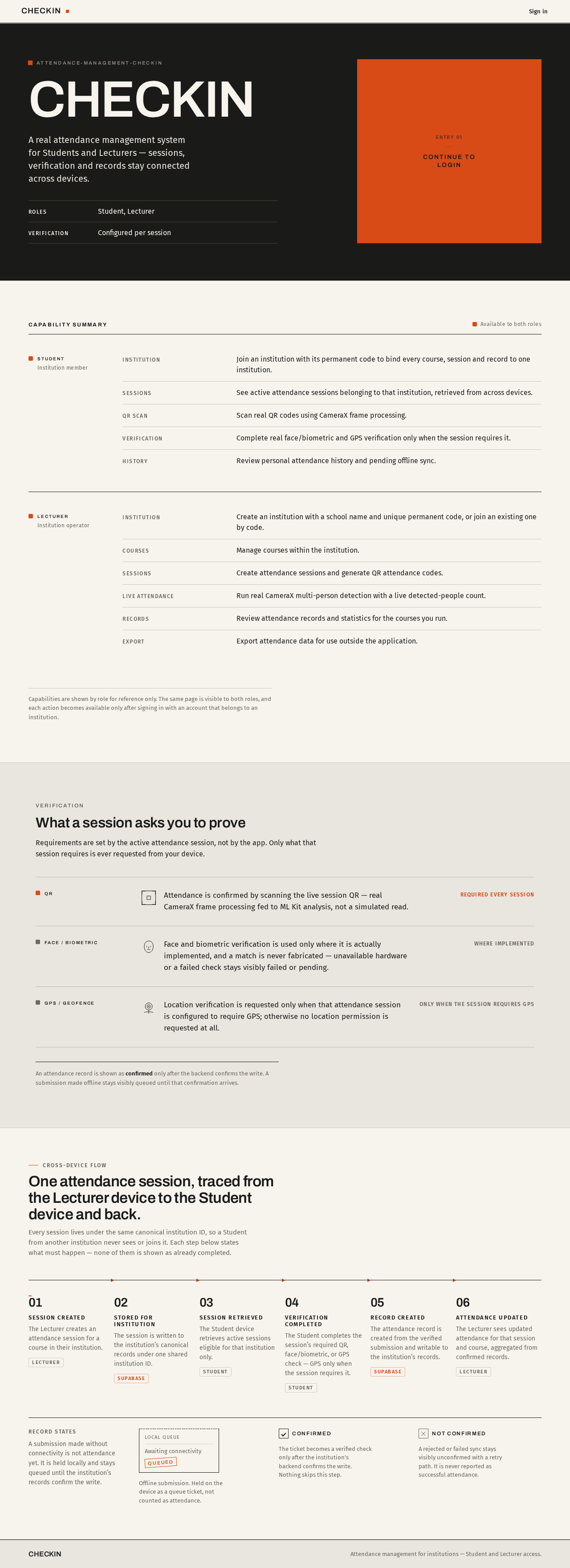
attendance-management-checkin
CHECKIN
A real attendance management system for Students and Lecturers — sessions, verification and records stay connected across devices.
- ROLES
- Student, Lecturer
- VERIFICATION
- Configured per session
Capability summary
Available to both roles- InstitutionJoin an institution with its permanent code to bind every course, session and record to one institution.
- SessionsSee active attendance sessions belonging to that institution, retrieved from across devices.
- QR scanScan real QR codes using CameraX frame processing.
- VerificationComplete real face/biometric and GPS verification only when the session requires it.
- HistoryReview personal attendance history and pending offline sync.
- InstitutionCreate an institution with a school name and unique permanent code, or join an existing one by code.
- CoursesManage courses within the institution.
- SessionsCreate attendance sessions and generate QR attendance codes.
- Live attendanceRun real CameraX multi-person detection with a live detected-people count.
- RecordsReview attendance records and statistics for the courses you run.
- ExportExport attendance data for use outside the application.
Capabilities are shown by role for reference only. The same page is visible to both roles, and each action becomes available only after signing in with an account that belongs to an institution.
Verification
What a session asks you to prove
Requirements are set by the active attendance session, not by the app. Only what that session requires is ever requested from your device.
Attendance is confirmed by scanning the live session QR — real CameraX frame processing fed to ML Kit analysis, not a simulated read.
Required every session
Face and biometric verification is used only where it is actually implemented, and a match is never fabricated — unavailable hardware or a failed check stays visibly failed or pending.
Where implemented
Location verification is requested only when that attendance session is configured to require GPS; otherwise no location permission is requested at all.
Only when the session requires GPS
An attendance record is shown as confirmed only after the backend confirms the write. A submission made offline stays visibly queued until that confirmation arrives.
Cross-device flow
One attendance session, traced from the Lecturer device to the Student device and back.
Every session lives under the same canonical institution ID, so a Student from another institution never sees or joins it. Each step below states what must happen — none of them is shown as already completed.
- 01Session createdThe Lecturer creates an attendance session for a course in their institution.Lecturer
- 02Stored for institutionThe session is written to the institution’s canonical records under one shared institution ID.Supabase
- 03Session retrievedThe Student device retrieves active sessions eligible for that institution only.Student
- 04Verification completedThe Student completes the session’s required QR, face/biometric, or GPS check — GPS only when the session requires it.Student
- 05Record createdThe attendance record is created from the verified submission and writable to the institution’s records.Supabase
- 06Attendance updatedThe Lecturer sees updated attendance for that session and course, aggregated from confirmed records.Lecturer
Record states
A submission made without connectivity is not attendance yet. It is held locally and stays queued until the institution’s records confirm the write.
Offline submission. Held on the device as a queue ticket, not counted as attendance.
The ticket becomes a verified check only after the institution’s backend confirms the write. Nothing skips this step.
A rejected or failed sync stays visibly unconfirmed with a retry path. It is never reported as successful attendance.
attendance-management-checkin
CHECKIN
A real attendance management system for Students and Lecturers — sessions, verification and records stay connected across devices.
- ROLES
- Student, Lecturer
- VERIFICATION
- Configured per session
Capability summary
Available to both roles- InstitutionJoin an institution with its permanent code to bind every course, session and record to one institution.
- SessionsSee active attendance sessions belonging to that institution, retrieved from across devices.
- QR scanScan real QR codes using CameraX frame processing.
- VerificationComplete real face/biometric and GPS verification only when the session requires it.
- HistoryReview personal attendance history and pending offline sync.
- InstitutionCreate an institution with a school name and unique permanent code, or join an existing one by code.
- CoursesManage courses within the institution.
- SessionsCreate attendance sessions and generate QR attendance codes.
- Live attendanceRun real CameraX multi-person detection with a live detected-people count.
- RecordsReview attendance records and statistics for the courses you run.
- ExportExport attendance data for use outside the application.
Capabilities are shown by role for reference only. The same page is visible to both roles, and each action becomes available only after signing in with an account that belongs to an institution.
Verification
What a session asks you to prove
Requirements are set by the active attendance session, not by the app. Only what that session requires is ever requested from your device.
Attendance is confirmed by scanning the live session QR — real CameraX frame processing fed to ML Kit analysis, not a simulated read.
Required every session
Face and biometric verification is used only where it is actually implemented, and a match is never fabricated — unavailable hardware or a failed check stays visibly failed or pending.
Where implemented
Location verification is requested only when that attendance session is configured to require GPS; otherwise no location permission is requested at all.
Only when the session requires GPS
An attendance record is shown as confirmed only after the backend confirms the write. A submission made offline stays visibly queued until that confirmation arrives.
Cross-device flow
One attendance session, traced from the Lecturer device to the Student device and back.
Every session lives under the same canonical institution ID, so a Student from another institution never sees or joins it. Each step below states what must happen — none of them is shown as already completed.
- 01Session createdThe Lecturer creates an attendance session for a course in their institution.Lecturer
- 02Stored for institutionThe session is written to the institution’s canonical records under one shared institution ID.Supabase
- 03Session retrievedThe Student device retrieves active sessions eligible for that institution only.Student
- 04Verification completedThe Student completes the session’s required QR, face/biometric, or GPS check — GPS only when the session requires it.Student
- 05Record createdThe attendance record is created from the verified submission and writable to the institution’s records.Supabase
- 06Attendance updatedThe Lecturer sees updated attendance for that session and course, aggregated from confirmed records.Lecturer
Record states
A submission made without connectivity is not attendance yet. It is held locally and stays queued until the institution’s records confirm the write.
Offline submission. Held on the device as a queue ticket, not counted as attendance.
The ticket becomes a verified check only after the institution’s backend confirms the write. Nothing skips this step.
A rejected or failed sync stays visibly unconfirmed with a retry path. It is never reported as successful attendance.
No comments yet. Be the first!