amber-calculator
 Diya Trivedi
build a simple single page design of calculator

Comments (0)
Sign in to leave a comment
System Requirements
System Requirements Document for amber-calculator
1. Introduction
amber-calculator is a simple calculator delivered as a single page. The product intent is narrow and explicit: a user opens one page, enters numbers and operators, and reads the arithmetic result. There is no multi-page application, no account system, and no workflow beyond basic calculation.
The audience is anyone who needs a plain, trustworthy calculator — a public utility. The design brief frames it as "a public utility calculator for anyone" that needs "calm trust, exact numbers and one clear keypad." The visual identity follows an austere, gallery-like reference (muse: Peter Saville): one amber instrument on a dark ground, sharp corners, hairline rules, and a single spot colour.
This document is the System Requirements Document for the product. It specifies the single page, its components and states, the one active persona, the calculation journey, and the visual and technical constraints that govern delivery.
Success Criteria
- A user can open the single Calculator page and complete a basic arithmetic calculation (enter operands and an operator, obtain a result) without leaving the page.
- The result is displayed as a large, legible number in the display block.
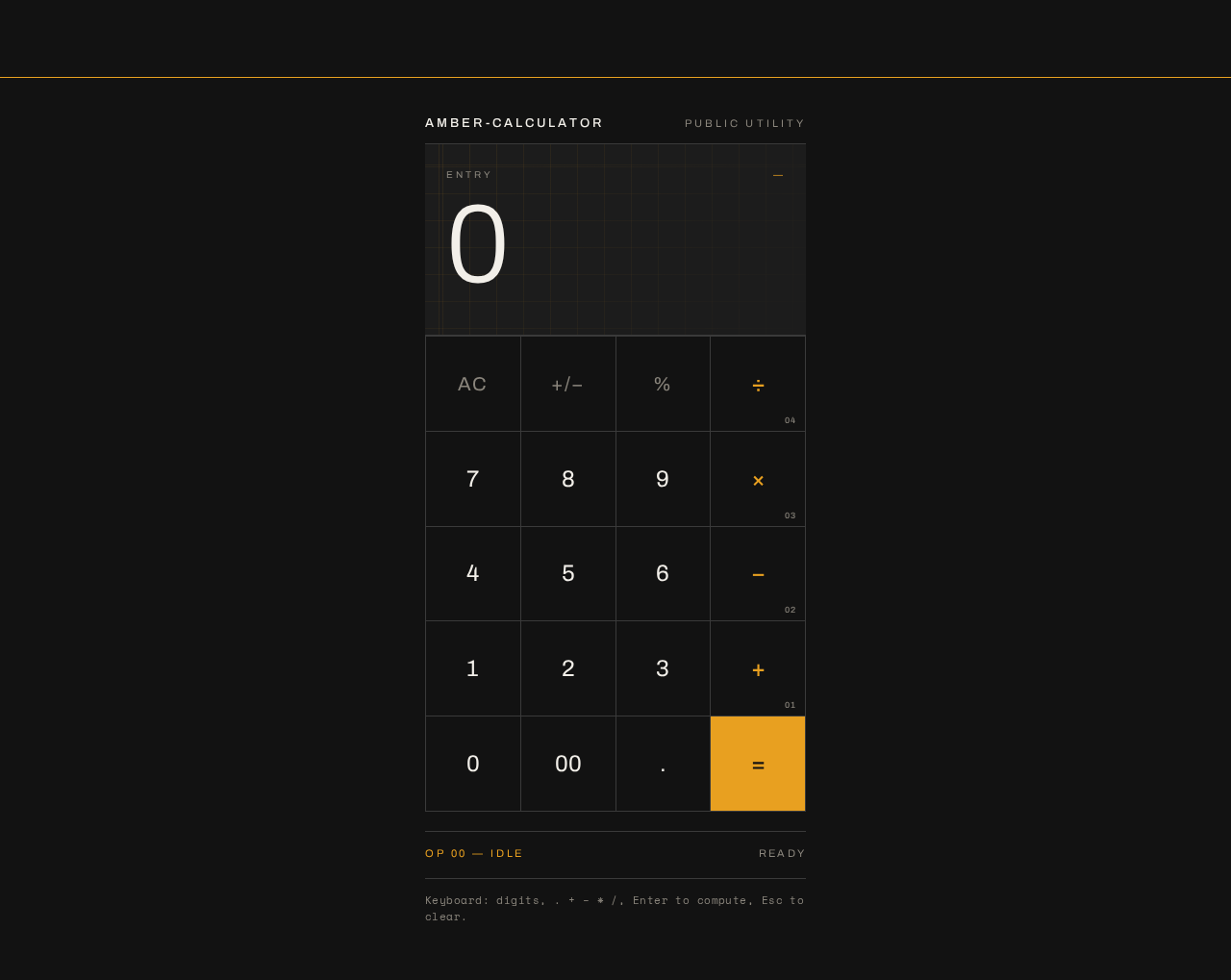
- The page renders as one centred column (420px on desktop, full width minus 24px on mobile) with a display block on top, a 4×5 key grid below, and a metadata line at the foot.
- All readable text and controls remain whole and inside the viewport at 375px, 768px, and 1280px.
- The palette, typography, shape language, and motion follow the authoritative creative direction.
2. System Overview
2a. Product Interpretation and Delivery Boundary
amber-calculator is a first-party, single-page web calculator. The one page, Calculator, is the anonymous public entry: no sign-in, no account, and no identity establishment are required or provided. A visitor lands directly on the calculator and can immediately enter numbers and operators and read results.
All calculation interaction is owned by the first-party Calculator page. The shared backend (FastAPI) and MariaDB database are provisioned infrastructure; the accepted calculator behavior is a client-side arithmetic interaction on a single page and does not require server-side persistence, accounts, or domain records. The backend and database remain available as the application's shared service foundation but do not introduce product capabilities, entities, or authentication.
Current scope is exactly the single calculator page and its arithmetic interaction. There are no future-horizon features specified by the user; anything beyond a simple single-page calculator is out of scope.
2c. Page Content and Component Coverage
Calculator
The single page. Anonymous public entry; no authentication. One centred column: display block on top, 4×5 key grid below, metadata line at the foot.
Information and state
- Current entry / result number, shown large, left-aligned, in Archivo light with tight tracking, sized
clamp(56px, 18vw, 128px). - Pending operation state (which operator is active, if any) reflected in the metadata line as a coded operation label (e.g.
OP 04 — DIVIDE). - A faint amber grid of hairlines behind the display as a coded reference diagram (decoration only).
- A full-width amber hairline above the display as the only ornament.
Primary actions
- Number keys (0–9) to enter operands.
- Operator keys (add, subtract, multiply, divide) to select an operation.
- Equals key (solid amber block) to compute and show the result.
- Clear key to reset the current entry/result.
Supporting actions
- Decimal point entry.
- Sign toggle or equivalent single-key correction as needed for basic entry (kept within the 4×5 grid; no additional controls beyond the keypad).
Domain entities
- Operand (numeric entry).
- Operator (add, subtract, multiply, divide).
- Result (computed numeric value).
- Operation label (coded metadata string, e.g.
OP 04 — DIVIDE).
Component responsibilities
- Display block: renders the current number/result; fades the result in over 120ms; hosts the faint amber hairline grid behind it.
- Key grid (4×5): flat square keys with 1px
#3A3A3Aborder; equals key is a solid amber block; keys show a solid amber fill on press and no other change. - Metadata line: small caps, wide tracking, shows the coded operation label at the foot.
States
- Loading: not applicable — the page is static and interactive on load.
- Empty / initial: display shows a default zero or blank entry; metadata line shows a neutral/default label.
- Success: result number appears in the display (120ms fade-in); metadata line reflects the completed operation.
- Error: invalid operations (e.g. divide by zero) show a clear error indication in the display; the user can clear and continue.
- Recovery: clear key resets the display and pending operation so the user can start a new calculation.
3. Functional Requirements
FR-1 — Single-page calculator (explicit) As a Calculator user, I should open a single page that presents a calculator, so that I can perform arithmetic in one place.
- Trigger: user navigates to the application.
- Observable result: the Calculator page loads with a display block, a 4×5 key grid, and a metadata line.
- Access: anonymous public entry; no sign-in.
- Failure/recovery: not applicable (static page load).
- Continuation: user proceeds to enter numbers.
FR-2 — Number entry (explicit) As a Calculator user, I should press number keys to enter operands, so that I can build the numbers I want to calculate.
- Trigger: user presses a number key (0–9).
- Observable result: the pressed digit appears in the display; the key shows a solid amber fill on press.
- Access: anonymous.
- Failure/recovery: clear key resets the entry.
- Continuation: user presses an operator key.
FR-3 — Operator selection (explicit) As a Calculator user, I should select an operator (add, subtract, multiply, divide), so that I can specify the operation to perform.
- Trigger: user presses an operator key.
- Observable result: the operator is recorded as pending; the metadata line shows the coded operation label (e.g.
OP 04 — DIVIDE). - Access: anonymous.
- Failure/recovery: user can reselect a different operator before computing.
- Continuation: user enters the second operand.
FR-4 — Compute result (explicit) As a Calculator user, I should press the equals key to compute the result, so that I can see the outcome of my calculation.
- Trigger: user presses the equals key (solid amber block).
- Observable result: the result number appears in the display, fading in over 120ms; the metadata line reflects the completed operation.
- Access: anonymous.
- Failure/recovery: invalid operations (e.g. divide by zero) show a clear error indication in the display; the user can clear and retry.
- Continuation: user can start a new calculation or continue from the result.
FR-5 — Clear and reset (required_inference) As a Calculator user, I should clear the current entry and pending operation, so that I can recover from a mistake or start a new calculation.
- Trigger: user presses the clear key.
- Observable result: display resets to its initial state; pending operation is discarded.
- Access: anonymous.
- Failure/recovery: this is the recovery path for FR-2 and FR-4.
- Continuation: user begins a new calculation.
FR-6 — Coded operation label (explicit, from creative direction) As a Calculator user, I should see a small caps metadata line at the foot showing the coded operation label, so that I can confirm which operation is active.
- Trigger: operator selection or computation.
- Observable result: metadata line displays a label such as
OP 04 — DIVIDE. - Access: anonymous.
- Failure/recovery: default/neutral label when no operation is pending.
- Continuation: label updates as the user changes operations.
4. User Personas
Calculator user
- Product context: A member of the public who needs a plain, trustworthy calculator. They arrive at the single Calculator page with no account and no prior setup.
- Primary goal: Perform a basic arithmetic calculation and read the exact result.
- Distinct accepted responsibilities: Enter numbers, select an operator, press equals to compute, read the result, and clear/reset when needed. They also read the coded operation label to confirm the active operation.
- Relevant inputs or decisions: Which digits to enter, which operator to apply, when to compute, and when to clear.
- Interactions with other accepted participants: None — this is a single-actor, single-page interaction with no counterparty, handoff, or shared state.
- Observable success: The result number appears in the display, large and legible, and the metadata line reflects the completed operation.
5. Core User Flows
Flow 1 — Perform a basic calculation
- Start: The Calculator user opens the application. The Calculator page loads (anonymous, no sign-in) with the display block, 4×5 key grid, and metadata line visible.
- Enter first operand: The user presses number keys; each digit appears in the display and each key shows a solid amber fill on press.
- Select operator: The user presses an operator key (e.g. divide). The operator is recorded as pending and the metadata line shows the coded label (e.g.
OP 04 — DIVIDE). - Enter second operand: The user presses number keys for the second operand; digits appear in the display.
- Compute: The user presses the equals key (solid amber block). The result number appears in the display, fading in over 120ms, and the metadata line reflects the completed operation.
- Read result: The user reads the large, left-aligned result number.
- Continue or reset: The user either starts a new calculation or presses the clear key to reset the display and pending operation.
Failure/recovery: If the user enters an invalid operation (e.g. divide by zero), the display shows a clear error indication. The user presses the clear key to reset and begins again.
6. Visuals Colors and Theme
The creative direction is authoritative for this section.
- Muse: Peter Saville. Industry read: a public utility calculator for anyone — calm trust, exact numbers, one clear keypad.
- Mode: Dark.
- Palette (exact hex by role):
- Background:
#121212(near-black ground, ~80% of the page) - Surface:
#1C1C1C - Text:
#F2EFE9(off-white) - Primary:
#E8A020(amber — display glow, equals key, title rule) - Accent:
#E8A020(amber) - Muted:
#8A857C - Key border:
#3A3A3A(1px)
- Background:
- Typography:
- Headings: Archivo — small precise caps with wide tracking for labels.
- Display number: Archivo at light weight with tight tracking;
clamp(56px, 18vw, 128px). - Body: Space Mono.
- Scale: 1.25 modular — 96 / 64 / 40 / 24 / 16.
- Key labels: 20px to 24px.
- Shape language: Sharp corners only. Hairline 1px rules divide the display from the keypad. Keys are flat squares with a 1px border.
- Layout: One centred column of 420px on desktop; full width minus 24px on mobile. Display block on top, 4×5 key grid below, metadata line at the foot.
- Imagery: No photography. A faint amber grid of hairlines sits behind the display as a coded reference diagram.
- Motion: Almost none. The result number fades in over 120ms. A key shows a solid amber fill on press and no other change.
- Avoid: Blue or indigo accents on white; rounded pill keys and soft shadows; gradient blobs or glass panels; decorative icons or emoji on keys.
7. Signature Design Concept
The calculator is the hero. On the public entry (the Calculator page), a large off-white result number sits left-aligned in a dark display block. A thin amber rule runs the full page width above it as the only ornament. The keypad sits below in a strict 4×5 grid of flat bordered keys, with the equals key as a solid amber block. A faint amber grid of hairlines sits behind the display as a coded reference diagram. A small caps metadata line at the foot shows a coded operation label (e.g. OP 04 — DIVIDE). The composition recomposes only accepted content and controls — the display, the keypad, and the metadata line — with no new behaviour or destination.
8. Interaction Model & Motion Direction
Interaction Model: Static (direction) Motion Tempo: still Hero Dimensionality: flat
Landing Hero Motion Brief
- Focal subject: The calculator itself — the oversized off-white result number in the dark display block, framed by the full-width amber hairline above and the 4×5 key grid below.
- Input → transformation → outcome thesis: A key press (input) produces a solid amber fill on the pressed key and updates the display; pressing equals (transformation) computes the result, which fades in over 120ms (outcome). No other motion occurs.
- Motion vocabulary: Near-still. A 120ms fade-in for the result number; a solid amber fill on key press with no other change.
- Composed first frame: Dark
#121212ground; full-width amber hairline; dark display block with a large left-aligned off-white number; faint amber hairline grid behind the display; 4×5 grid of flat bordered keys with a solid amber equals key; small caps metadata line at the foot. - Reduced-motion state: With
prefers-reduced-motion, the result appears without the 120ms fade (instant display); the key press fill remains as a static state change. The layout is unchanged and fully usable.
9. Non-Functional Requirements
- Single page (explicit): The design is a single page. No additional pages, routes, or navigation are introduced.
- Simplicity (explicit): The design is simple. No adjacent capabilities (history, memory, scientific functions, accounts, settings) are added.
- Readable text and controls (explicit, from creative direction): Headlines, wordmarks, labels, numbers, and controls stay entirely inside the viewport and their container at 375px, 768px, and 1280px, wrapping or scaling (e.g.
font-size: clamp(...)) to fit; no other element covers any part of them. - Reduced motion (explicit, from creative direction): With
prefers-reduced-motion, provide a usable static arrangement; the result appears without the fade. - Accessibility: Off-white text
#F2EFE9on#1C1C1Csurface and amber#E8A020on#121212maintain readable contrast; keys are focusable and operable by keyboard. - No photography (explicit): No photography is used; imagery is limited to the faint amber hairline grid.
10. Tech Stack
- Frontend: React application UI (single Calculator page).
- Backend: Shared FastAPI process for application APIs and domain modules (provisioned; the accepted calculator interaction is client-side and does not require server-side persistence).
- Database: MariaDB for application-owned persistent data (provisioned; no domain entities are required by the accepted calculator behavior).
- Infrastructure: Docker / docker-compose for the provisioned services (backend, database, frontend).
11. Assumptions and Constraints
- Assumption: The calculator performs basic arithmetic (add, subtract, multiply, divide) with a 4×5 key grid; this is the minimum implied by "a simple calculator" and the creative direction's keypad description.
- Assumption: The calculator interaction is client-side; the provisioned backend and database do not introduce product requirements, entities, or authentication.
- Constraint: The design is a single page (explicit).
- Constraint: The design is simple (explicit).
- Constraint: The palette, typography, shape language, layout, and motion follow the authoritative creative direction.
- Constraint: The generic indigo/blue-on-white SaaS template is forbidden for this project.
12. Glossary
- Calculator page: The single page of the product; anonymous public entry holding the display, keypad, and metadata line.
- Display block: The dark area at the top of the page showing the current number or result.
- Key grid: The strict 4×5 grid of flat bordered keys below the display.
- Equals key: The solid amber block key that computes the result.
- Metadata line: The small caps line at the foot showing the coded operation label (e.g.
OP 04 — DIVIDE). - Coded operation label: A short coded string identifying the active operation.
- Calculator user: The single active persona who performs arithmetic on the page.
Keyboard: digits, . + − * /, Enter to compute, Esc to clear.
Keyboard: digits, . + − * /, Enter to compute, Esc to clear.
No comments yet. Be the first!