ai-website
 Jovens Saint Louis
# Build My Personal AI Website & App Builder ## Project Name **MyBuild AI Studio** ## Main Goal Build a professional, private AI website and app builder that I can use personally to create unlimited websites, web apps, landing pages, business tools, dashboards, and other digital projects. I want my own version of an AI app builder similar to Webild.io, but designed exclusively for me. I am the only user. I do not want to pay monthly subscriptions to use my own platform. Build this as a professional, modern, easy-to-use application. --- # 1. PRIVATE PERSONAL WORKSPACE Create a private dashboard that only I can access. Features: - Private personal workspace. - No public registration. - No public user accounts. - No subscription plans. - No payment system. - No public marketplace. - No advertisements. - No unnecessary enterprise features. Create a simple owner login system. Allow me to configure my own password. Do not create a hardcoded publicly accessible admin account. If authentication requires a backend, clearly explain the free options and implement the safest practical solution. --- # 2. AI WEBSITE AND APP GENERATOR Create a large AI prompt input box on the main dashboard. Placeholder: "What do you want to build today? Describe your website or app..." Example: "Build me a professional Christian video streaming website with a homepage, video categories, search, user dashboard, and a dark gold design." Add a prominent button: **Generate My Website** When I submit a prompt, the application should: 1. Understand my project description. 2. Create a website structure. 3. Generate the website's HTML. 4. Generate CSS styling. 5. Generate JavaScript functionality. 6. Create responsive layouts. 7. Display the generated website in a live preview. 8. Allow me to edit the generated code. 9. Allow me to download the project. 10. Save the project to my personal workspace. Support generating: - Websites. - Web applications. - Landing pages. - Business websites. - Christian content websites. - AI tools. - Dashboards. - Portfolio websites. - Online stores. - Booking websites. - Educational platforms. - Mobile-friendly web applications. --- # 3. LIVE WEBSITE PREVIEW Create a professional preview area. Include: - Desktop preview. - Tablet preview. - Mobile preview. - Refresh preview. - Full-screen preview. - Preview loading indicator. When I generate a website, show the actual rendered website. Do not display only a description or a screenshot. I want to see and interact with the website I am building. Use a safe preview environment that isolates generated code from the main application. --- # 4. AI WEBSITE EDITOR After generating a website, allow me to modify it using natural language. Create an input box: "What would you like to change?" Example prompts: - Make the website look more professional. - Change the colors to black and gold. - Add a login page. - Add a video gallery. - Make the website mobile-friendly. - Add a navigation menu. - Add a pricing section. - Add a contact form. - Make the buttons functional. - Add a dashboard. - Fix the broken layout. Add a button: **Apply Changes** The AI should modify the existing project instead of starting over. Preserve existing features unless I specifically request their removal. Show the updated website in the live preview. --- # 5. CODE EDITOR Create a built-in code editor. Include separate tabs for: - HTML. - CSS. - JavaScript. - Project files. Features: - Syntax highlighting. - Editable code. - Save changes. - Preview changes. - Download code. - Copy code. - Restore previous version. Use a professional code editor library if available without requiring a paid subscription. --- # 6. PROJECT FILE MANAGER Create a file explorer for each generated project. Example: My Website/ index.html style.css script.js assets/ README.md Allow me to: - View project files. - Edit files. - Create files. - Rename files. - Delete files. - Download individual files. - Export the entire project as a ZIP file. Save projects in my personal workspace. --- # 7. MY PROJECTS DASHBOARD Create a section called: **My Projects** Every generated project should have: - Project name. - Project description. - Creation date. - Last modified date. - Preview. - Edit. - Rename. - Duplicate. - Download. - Delete. Add project search. Add project categories: - Websites. - Apps. - Business. - AI Tools. - Personal Projects. Allow me to reopen a project and continue working on it. --- # 8. FREE AI SYSTEM My goal is to use this application without paying monthly fees. Design the AI system to support: 1. Local AI models. 2. Free AI services when available. 3. Optional AI provider configuration. Prefer local AI models that can run on my own computer. Allow me to connect an AI provider using my own API key if I choose. Do not require a paid API key to open the dashboard, edit code, preview websites, or download projects. If an AI provider requires payment, clearly explain that before using it. Do not pretend that AI generation is free if it depends on a paid service. Build a provider settings page where I can configure: - AI provider. - Model. - API key. - Local AI endpoint. - Generation settings. Never expose API keys in public frontend code. --- # 9. FREE STORAGE SYSTEM Use local storage or IndexedDB for personal project storage where appropriate. Save: - Projects. - Project descriptions. - Generated code. - Project settings. - Editor preferences. - Recent projects. Automatically save changes. Allow me to export and import my projects. Do not require a paid database for the basic personal version. Explain any limitations of browser storage. --- # 10. PROFESSIONAL DESIGN Create a beautiful dark-themed AI development studio. Design style: - Black background. - Dark gray panels. - Gold accent colors. - Modern typography. - Smooth animations. - Professional dashboard layout. - Clean navigation. - Rounded cards. - Minimal clutter. Make it look like a premium AI software development platform. Main sidebar: - Dashboard. - Create Website. - My Projects. - AI Editor. - Code Editor. - Templates. - Settings. Main dashboard: - Welcome section. - AI generation prompt. - Generate button. - Recent projects. - Quick-start templates. Make the application responsive and easy to use on desktop, tablet, and mobile. --- # 11. WEBSITE TEMPLATES Create starter templates for: - Business website. - Christian website. - Video streaming website. - AI SaaS dashboard. - Landing page. - Portfolio. - Online store. - Booking website. - Educational website. Allow me to select a template and customize it using AI. --- # 12. DOWNLOAD AND EXPORT Add a professional export system. Allow me to: - Download the complete project as ZIP. - Download HTML. - Download CSS. - Download JavaScript. - Copy source code. - Export project files. The downloaded project should contain the actual generated source code. Make projects easy to open in Visual Studio Code. Include a README explaining how to run the project. --- # 13. IMPORTANT TECHNICAL REQUIREMENTS Build the actual working application. Do not create just a static dashboard design. Do not use fake generation buttons. Do not show fake AI results. Do not create buttons that do nothing. Use a simple, maintainable architecture. Prefer: - React. - TypeScript. - Vite. - Tailwind CSS. - IndexedDB. - A safe preview sandbox. - A free code editor library. Use free open-source tools where possible. Avoid unnecessary paid integrations. If the AI model cannot be accessed, display a clear error message and provide the ability to edit projects manually. --- # 14. SECURITY This is a personal development tool. Implement: - Private workspace. - Safe code preview. - Protection against executing generated code inside the main dashboard. - Secure API key handling. - Input validation. - Safe project file handling. Do not expose sensitive API keys. Do not allow generated projects to access my personal files without permission. --- # 15. BUILD AND DEPLOYMENT Build the complete application. Make it possible to run locally on my computer. Provide: - Complete source code. - Installation instructions. - Setup instructions. - Development instructions. - Build instructions. - Deployment instructions. Prefer a free local development workflow. Explain which features work without an internet connection and which require an AI model or internet connection. Do not claim that free hosting, AI inference, or unlimited cloud storage is guaranteed. --- # FINAL REQUIREMENT Build MyBuild AI Studio as a real, working, private AI development platform. I want to open my dashboard, describe an application, generate its source code, preview it, edit it, save it, and download it. Make the platform powerful enough for me to create many different websites and applications for my own projects. Focus on functionality, privacy, simplicity, and keeping ongoing costs as close to zero as realistically possible. Start by building the complete working MVP, then improve it with the additional features. Do not stop at a design mockup. Deliver the actual application and explain how I can start using it.


Comments (0)
Sign in to leave a comment
System Requirements
System Requirements Document for MyBuild AI Studio
1. Introduction
MyBuild AI Studio is a private, single-owner AI website and application builder. Its owner — the only user — opens a personal workspace, describes a website or app in natural language, and receives real generated HTML, CSS and JavaScript that renders in an isolated live preview, can be refined with further AI change requests, can be hand-edited in a built-in code editor, is saved automatically to the owner's own machine, and can be downloaded as a runnable project.
The product intent is a personal equivalent of a commercial AI app builder (Webild.io is referenced only as a feature reference), designed exclusively for one person: no public registration, no public accounts, no subscriptions, no payment system, no marketplace, no advertising, and no enterprise overhead. Ongoing cost should stay as close to zero as realistically possible, which drives the preference for local AI models, optional bring-your-own-key providers, and browser-local storage rather than a paid database.
The audience is a single technical owner (Jovens Saint Louis) who wants to generate many different kinds of digital projects — websites, web applications, landing pages, business sites, Christian content sites, AI tools, dashboards, portfolios, online stores, booking sites, educational platforms and mobile-friendly web apps — and keep full ownership of the resulting source code.
2. System Overview
MyBuild AI Studio is delivered as a real, working application, not a mockup. It consists of:
- A React + TypeScript + Vite + Tailwind CSS frontend that provides the private workspace: the dashboard with the AI prompt, the Create Website generation surface with the live preview, the AI Editor, the Code Editor with the project file manager, My Projects, Templates and Settings.
- A shared FastAPI backend that owns the application APIs: owner identity and password configuration, project persistence, AI generation and change-request orchestration, and secure provider-key handling. The backend is the only component that talks to AI providers.
- A LiteLLM gateway used by the backend for model-provider calls, with its own PostgreSQL instance for gateway bookkeeping — separate from application-owned storage.
- A MariaDB database for application-owned persistent data (owner credential record, project records, project files, version history, provider configuration metadata, editor preferences, recent-project references).
- IndexedDB in the browser for the owner's local working copy of projects, editor preferences and recent projects, with automatic saving and export/import.
- A sandboxed preview environment (isolated iframe with a restrictive sandbox policy) in which generated code executes, never inside the main dashboard.
The only active human actor is the Owner (sole user). AI providers and local model endpoints are external, non-persona actors owned outside the product. The system itself performs generation, persistence and export work on the owner's behalf.
Current behavior covers: private owner access with a self-configured password; prompt-driven generation of complete projects; interactive sandboxed preview with desktop/tablet/mobile, refresh, full-screen and loading states; natural-language change requests that modify the existing project and preserve existing features; a code editor with HTML/CSS/JavaScript/Project files tabs, syntax highlighting, save, preview, download, copy and restore previous version; a per-project file manager with create, rename, delete, download and ZIP export; a My Projects dashboard with search, categories and reopen; nine starter templates; a provider settings page for provider, model, API key, local endpoint and generation settings; local storage with automatic save and export/import; and a professional dark black/gold studio design that is responsive on desktop, tablet and mobile.
Removed from scope
- Public registration (also: public user accounts, sign-up)
- Subscription plans (also: subscriptions, monthly fees)
- Payment system (also: billing, checkout)
- Public marketplace (also: template marketplace, community gallery)
- Advertisements (also: ads)
- Unnecessary enterprise features (also: team management, org roles, SSO)
- Hardcoded publicly accessible admin account (also: default admin login)
- Fake generation buttons, fake AI results, non-functional buttons (also: mock generation, placeholder results)
- Static-only dashboard design (also: design mockup)
- Executing generated code inside the main dashboard (also: unsandboxed preview)
- Generated projects accessing personal files without permission (also: unrestricted file access)
- Claims that free hosting, AI inference or unlimited cloud storage is guaranteed (also: unlimited free cloud)
2a. Product Interpretation and Delivery Boundary
MyBuild AI Studio is a first-party application with application-owned identity, because the owner must privately own and resume durable, owner-specific project state and must be the only person able to reach the workspace. Access is therefore split into two anonymous entry surfaces and seven protected workspace surfaces:
- Landing and Login are reachable without identity. Login is where the owner establishes a password on first use and verifies identity on every return. A protected destination never establishes access to itself.
- Dashboard, Create Website, My Projects, AI Editor, Code Editor, Templates and Settings require the owner to be logged in.
There is exactly one identity — the owner. No differentiated permissions, roles or visibility rules exist, because there is only one user; the login exists to keep everyone else out, not to separate privileges.
AI generation is provider-dependent and honestly presented. The dashboard, code editing, previewing and downloading never require a paid API key. AI generation requires either a local model endpoint running on the owner's computer or a configured provider; when a provider charges money, the application says so before the owner uses it, and when no model can be reached it shows a clear error and leaves manual editing fully available. The backend holds provider credentials and calls models through the LiteLLM gateway; keys are never shipped in frontend code.
Storage is deliberately local-first: IndexedDB holds the owner's working copy with automatic saving, and the backend database holds the durable project record so projects survive across sessions and devices the owner runs the app on. Neither requires a paid database. Browser storage has real limits (per-origin quota, clearing site data removes the local copy), which the application explains.
Everything described here is current. Nothing in this document is deferred to a future release.
2b. Source Content Inventory
Not applicable — no reference directive declares content_source.
2c. Page Content and Component Coverage
Landing
- Information/state: Product name MyBuild AI Studio; headline "Describe it. Build it. Own the code."; subline "A private studio for your own websites and apps, saved on your machine."; a short statement that this is a private, single-owner studio with no accounts, no subscriptions and no ads; a quoted caption label above the hero panel; a thin ticker tape of project names above the prompt panel; hazard-stripe divider below the hero.
- Primary action: "Generate My Website" gold block pinned to the right edge of the full-width black prompt panel — routes the visitor to Login (or to Dashboard when already authenticated).
- Supporting actions: Enter the workspace (Login); read the offline/online capability note.
- Domain entities: none persisted; the ticker reads recent project names when a local session exists, otherwise shows template names.
- Component responsibilities: hero prompt panel (display only, not a working generator on this surface), quoted caption label, ticker tape, hazard-stripe divider, capability note block.
- States: loading — none required; empty — ticker falls back to template names; success — CTA navigates; error — none; recovery — if the workspace is unreachable, the CTA still leads to Login which reports the failure.
Login
- Information/state: First-use state ("Set your owner password") versus returning state ("Welcome back"); password strength/confirmation feedback on first use; a plain explanation of the free, local authentication approach (owner credential stored server-side as a salted hash; no third-party auth service, no hardcoded admin account).
- Primary action: First use — set and confirm the owner password, then enter the workspace. Returning — enter the password and verify identity.
- Supporting actions: Toggle password visibility; read the authentication explanation.
- Domain entities: Owner credential (password hash, salt, created/updated timestamps).
- Component responsibilities: password form, confirmation field (first use only), validation messaging, submit control, explanation panel.
- States: loading — submit disabled with progress indicator; empty — first-use form when no credential exists; success — redirect to Dashboard; error — mismatched confirmation, too-short password, wrong password (generic message, no hint about which part failed); recovery — retry after a short delay; if the backend is unreachable, an explicit message that the workspace cannot be opened right now.
Dashboard
- Information/state: Welcome section addressed to the owner; the large AI prompt input with placeholder "What do you want to build today? Describe your website or app..."; the example prompt shown as a quoted caption; recent projects rail; quick-start templates; a status line showing the active AI provider/model and whether it is local or paid.
- Primary action: "Generate My Website" — submits the prompt and starts generation, moving to Create Website with the live preview.
- Supporting actions: Insert the example prompt; pick a quick-start template (opens Templates selection); open a recent project (My Projects / editor); navigate the sidebar.
- Domain entities: Project (name, description, category, timestamps), recent-project references, template catalog entries, provider configuration summary.
- Component responsibilities: welcome block, prompt panel with pinned gold generate block, ticker tape of project names, recent projects rail, quick-start template tiles, hazard-stripe dividers, sidebar navigation.
- States: loading — generate button shows progress and the prompt is locked while generation runs; empty — no recent projects shows a first-project invitation and templates only; success — navigation to Create Website with the new project; error — provider unreachable or unconfigured shows a clear inline error with a link to Settings and a note that manual creation is still possible; recovery — retry, or open Settings.
Create Website
- Information/state: The submitted prompt; generation progress stages (understanding description, structuring site, generating HTML, CSS, JavaScript, responsive layout); the live preview of the actual rendered site; preview viewport controls; project name and category once created.
- Primary action: "Generate My Website" for a new prompt; interact with the rendered site inside the preview.
- Supporting actions: Desktop / Tablet / Mobile viewport switch; Refresh preview; Full-screen preview; open AI Editor; open Code Editor; download project; save to workspace (automatic).
- Domain entities: Project, Project files (index.html, style.css, script.js, assets/, README.md), generation run record.
- Component responsibilities: prompt panel, generation progress indicator, sandboxed preview frame, viewport toolbar, refresh and full-screen controls, preview loading indicator, post-generation action bar.
- States: loading — preview loading indicator plus staged progress; empty — no project yet, prompt panel focused; success — rendered interactive site in the sandbox; error — model unreachable, malformed model output, or generation timeout shows a clear message, keeps the prompt, and offers retry or manual start from a blank project; recovery — retry generation, or proceed to Code Editor to build manually.
My Projects
- Information/state: Every project with name, description, creation date, last modified date, and a preview thumbnail; search field; category filter (Websites, Apps, Business, AI Tools, Personal Projects).
- Primary action: Reopen a project to continue working.
- Supporting actions: Preview, Edit, Rename, Duplicate, Download, Delete; export all projects; import projects.
- Domain entities: Project, project files, categories, timestamps.
- Component responsibilities: search input, category filter, project card grid/list, per-card action menu, rename dialog, delete confirmation, import/export controls.
- States: loading — skeleton cards; empty — no projects yet with a link to Create Website; success — cards render with real metadata; error — storage read failure shows a clear message and offers export of whatever is readable; recovery — retry, or import a previously exported archive.
AI Editor
- Information/state: The open project; the change-request input with placeholder "What would you like to change?"; example change prompts as quoted labels; the live preview of the current project; a change history of applied requests.
- Primary action: "Apply Changes" — sends the change request and modifies the existing project.
- Supporting actions: Use an example prompt; switch preview viewport; refresh and full-screen preview; open Code Editor; download project.
- Domain entities: Project, project files, change request record, version snapshot.
- Component responsibilities: change-request panel, example prompt labels, sandboxed preview, viewport toolbar, change history list, post-change action bar.
- States: loading — Apply Changes disabled with progress while the model works; empty — no project open prompts the owner to pick one from My Projects; success — updated site renders in preview and existing features are preserved unless removal was requested; error — model unreachable or unusable output shows a clear message and leaves the project unchanged; recovery — retry the request, rephrase it, or edit manually in Code Editor.
Code Editor
- Information/state: Tabs for HTML, CSS, JavaScript and Project files; syntax-highlighted editable code; the project file tree; unsaved-change indicator; version history.
- Primary action: Edit code and Save changes.
- Supporting actions: Preview changes; Download code; Copy code; Restore previous version; create, rename, delete and download individual files from the file tree; export the project as ZIP.
- Domain entities: Project files, file paths, version snapshots, editor preferences.
- Component responsibilities: tab bar, code editor surface with syntax highlighting, file explorer tree, save/copy/download controls, version history panel, preview pane.
- States: loading — editor initializes with the project's files; empty — a project with no files offers file creation; success — saved changes persist and preview updates; error — invalid file name, duplicate path, or save failure shows a clear message and keeps the edit in the buffer; recovery — restore previous version, or retry save.
Templates
- Information/state: Nine starter templates — Business website, Christian website, Video streaming website, AI SaaS dashboard, Landing page, Portfolio, Online store, Booking website, Educational website — each with a name, short description and visual sample.
- Primary action: Select a template to start a project from it.
- Supporting actions: Customize the selected template with AI (opens the prompt prefilled with the template context and proceeds to Create Website); preview a template.
- Domain entities: Template catalog entries, resulting Project.
- Component responsibilities: template grid, template preview, "Customize with AI" action, prompt handoff.
- States: loading — template grid renders from the local catalog; empty — not applicable, the catalog is fixed at nine; success — selection creates a project and opens Create Website; error — if AI customization is unavailable, the template still creates an editable project and the error explains that manual editing is available; recovery — proceed to Code Editor.
Settings
- Information/state: AI provider selection; model; API key entry; local AI endpoint; generation settings (for example temperature and max output length); a clear statement of which options are free and which cost money; storage explanation covering browser storage limits and export/import; offline capability note.
- Primary action: Save provider configuration.
- Supporting actions: Test connection; clear stored key; export all projects; import projects; review storage limitations.
- Domain entities: Provider configuration (provider, model, endpoint, generation settings), credential reference (key stored server-side, never returned to the frontend), editor preferences.
- Component responsibilities: provider form, key field with masked display, local endpoint field, generation settings controls, cost disclosure block, connection test, storage explanation panel, export/import controls.
- States: loading — connection test in progress; empty — no provider configured, with a recommendation to use a local model; success — configuration saved and confirmed, key never echoed back; error — invalid endpoint, rejected key, or unreachable provider shows a specific message; recovery — correct the field and retry, or switch to a local endpoint.
3. Functional Requirements
FR-1 — Private single-owner workspace (explicit) As the Owner I should have a private workspace that only I can access, with no public registration, no public user accounts, no subscription plans, no payment system, no public marketplace, no advertisements and no unnecessary enterprise features, so that the studio stays personal and free of commercial overhead.
- Trigger: any visit to the application.
- Observable result: no sign-up, pricing, marketplace or ad surface exists anywhere; the only identity is the owner.
- Access: Landing and Login are anonymous; all workspace pages require login.
- Failure/recovery: none applicable — the absence is structural.
- Continuation: the owner proceeds to Login.
FR-2 — Owner password configuration on first use (required_inference) As the Owner I should set my own password the first time I use the studio, so that access is mine alone and no hardcoded publicly accessible admin account exists.
- Trigger: first visit to Login when no owner credential exists.
- Input: password and confirmation.
- Observable result: the credential is stored server-side as a salted hash; the owner is admitted to the workspace; the first-use form is replaced by the returning form on later visits.
- Access: anonymous Login surface.
- Failure/recovery: mismatched confirmation or too-short password is rejected with a clear message and the form stays available; a backend failure reports that the workspace cannot be opened right now.
- Continuation: Dashboard.
FR-3 — Returning identity verification (required_inference) As the Owner I should verify my identity each time I return, so that the private workspace cannot be opened by anyone else.
- Trigger: visit to a protected page without a valid session.
- Input: owner password.
- Observable result: a valid password opens the requested workspace page; an invalid one is refused with a generic message.
- Access: anonymous Login surface; protected pages redirect here.
- Failure/recovery: repeated failures are rate-limited; the owner can retry.
- Continuation: the originally requested page, or Dashboard.
FR-4 — Dashboard prompt and generate action (explicit) As the Owner I should see a large AI prompt input on the main dashboard with the placeholder "What do you want to build today? Describe your website or app..." and a prominent "Generate My Website" button, so that starting a build is one obvious action.
- Trigger: opening Dashboard.
- Input: free-text project description.
- Observable result: the prompt accepts text; the generate button is prominent and functional; submitting starts generation and moves to Create Website.
- Access: login required.
- Failure/recovery: an empty prompt disables generation with an inline hint; an unconfigured or unreachable provider shows a clear error linking to Settings.
- Continuation: Create Website with the generation in progress.
FR-5 — Prompt-driven project generation (explicit) As the Owner I should have the application understand my description, create a website structure, generate HTML, CSS and JavaScript, create responsive layouts, show the result in a live preview, allow code editing, allow download and save the project to my workspace, so that one prompt produces a real, usable project.
- Trigger: submitting a prompt from Dashboard or Create Website.
- Input: project description text.
- Observable result: a project is created containing index.html, style.css, script.js, an assets folder and a README.md; the rendered site appears in the live preview; the project is saved automatically.
- Access: login required.
- Failure/recovery: model unreachable, malformed output or timeout produces a clear error, preserves the prompt, and offers retry or a blank project for manual editing.
- Continuation: refine in AI Editor, edit in Code Editor, or download.
FR-6 — Supported project types (explicit) As the Owner I should be able to generate websites, web applications, landing pages, business websites, Christian content websites, AI tools, dashboards, portfolio websites, online stores, booking websites, educational platforms and mobile-friendly web applications, so that the studio covers every kind of project I build.
- Trigger: prompt content describing any of these project kinds.
- Observable result: the generated structure and responsive layout reflect the described kind.
- Access: login required.
- Failure/recovery: as FR-5.
- Continuation: as FR-5.
FR-7 — Live interactive preview (explicit) As the Owner I should see the actual rendered website in the preview and interact with it, not a description or a screenshot, so that I can judge what I am building.
- Trigger: a generated or edited project, or opening a project.
- Observable result: the real site renders and responds to interaction inside the preview.
- Access: login required.
- Failure/recovery: a rendering failure shows an error inside the preview area with a refresh action.
- Continuation: continue editing or exporting.
FR-8 — Preview viewport and display controls (explicit) As the Owner I should switch between desktop, tablet and mobile preview, refresh the preview, open it full-screen, and see a preview loading indicator, so that I can check every layout.
- Trigger: using the preview toolbar.
- Observable result: the preview resizes to the chosen viewport, refreshes on demand, expands to full screen, and shows a loading indicator while rendering.
- Access: login required.
- Failure/recovery: a failed refresh reports the error and keeps the last good render.
- Continuation: return to the chosen viewport.
FR-9 — Isolated preview sandbox (explicit) As the Owner I should have generated code run in a safe environment isolated from the main application, so that a generated project can never execute inside my dashboard.
- Trigger: any preview render.
- Observable result: generated code executes only inside a sandboxed frame with no access to the parent application, its storage or the owner's files.
- Access: login required.
- Failure/recovery: if the sandbox cannot initialize, the preview reports it and does not fall back to in-page execution.
- Continuation: retry or edit code.
FR-10 — Natural-language change requests (explicit) As the Owner I should type "What would you like to change?" and press "Apply Changes" to modify the existing project, so that refinement feels like conversation.
- Trigger: submitting a change request in AI Editor.
- Input: change description (for example "Change the colors to black and gold", "Add a login page", "Add a video gallery", "Make the website mobile-friendly", "Add a navigation menu", "Add a pricing section", "Add a contact form", "Make the buttons functional", "Add a dashboard", "Fix the broken layout", "Make the website look more professional").
- Observable result: the existing project is modified rather than regenerated from scratch; the updated site appears in the live preview; the change is recorded in history.
- Access: login required.
- Failure/recovery: model unreachable or unusable output leaves the project unchanged and shows a clear error; the owner can retry, rephrase, or edit manually.
- Continuation: further change requests, Code Editor, or download.
FR-11 — Feature preservation on change (explicit) As the Owner I should have existing features preserved unless I specifically request their removal, so that iterative edits never silently destroy work.
- Trigger: applying a change request.
- Observable result: previously generated sections and behavior remain unless the request names them for removal.
- Access: login required.
- Failure/recovery: if a change would remove something not requested for removal, the result is rejected and the project stays as it was, with an explanatory message.
- Continuation: rephrase the request.
FR-12 — Built-in code editor with tabs (explicit) As the Owner I should have a built-in code editor with separate tabs for HTML, CSS, JavaScript and Project files, so that I can work at the source level.
- Trigger: opening Code Editor for a project.
- Observable result: each tab shows the corresponding content; the Project files tab shows the file tree.
- Access: login required.
- Failure/recovery: a project with no files offers file creation.
- Continuation: edit and save.
FR-13 — Code editing capabilities (explicit) As the Owner I should have syntax highlighting, editable code, save changes, preview changes, download code, copy code and restore previous version, so that manual editing is as capable as AI editing.
- Trigger: editing in Code Editor.
- Input: code changes.
- Observable result: highlighted editable code; saving persists the change and updates the preview; download and copy produce the real source; restore returns the project to a previous version.
- Access: login required.
- Failure/recovery: a save failure keeps the edit in the buffer and reports the error; restore requires confirmation.
- Continuation: preview, export, or further editing.
FR-14 — Project file manager (explicit) As the Owner I should have a file explorer for each project showing files such as index.html, style.css, script.js, assets/ and README.md, and be able to view, edit, create, rename, delete, download individual files and export the whole project as ZIP, so that I control the project's structure.
- Trigger: opening the Project files tab or the file explorer.
- Observable result: the tree reflects the real project files; each operation takes effect and is saved automatically.
- Access: login required.
- Failure/recovery: invalid or duplicate file names are rejected with a clear message; deleting a file requires confirmation; a failed operation leaves the tree unchanged.
- Continuation: continue editing or export.
FR-15 — My Projects listing (explicit) As the Owner I should see every project with its name, description, creation date, last modified date and a preview, plus preview, edit, rename, duplicate, download and delete actions, so that I can manage my library.
- Trigger: opening My Projects.
- Observable result: all projects render with real metadata; each action performs its real operation.
- Access: login required.
- Failure/recovery: delete requires confirmation; a storage read failure reports clearly and offers export of readable data.
- Continuation: reopen a project.
FR-16 — Project search and categories (explicit) As the Owner I should search projects and filter by Websites, Apps, Business, AI Tools and Personal Projects, so that I can find work quickly.
- Trigger: typing in search or choosing a category.
- Observable result: the list narrows to matching projects.
- Access: login required.
- Failure/recovery: no matches shows an empty-result message with a clear-filter action.
- Continuation: open a result.
FR-17 — Reopen and continue (explicit) As the Owner I should reopen a saved project and continue working on it, so that work spans sessions.
- Trigger: selecting a project.
- Observable result: the project opens with its files, preview and history intact.
- Access: login required.
- Failure/recovery: a missing or corrupted project reports clearly and offers import or deletion.
- Continuation: AI Editor or Code Editor.
FR-18 — Local AI model support (explicit) As the Owner I should be able to use local AI models that run on my own computer, so that generation can cost nothing and stay private.
- Trigger: configuring a local endpoint in Settings.
- Input: local AI endpoint and model name.
- Observable result: generation and change requests are served by the local model.
- Access: login required.
- Failure/recovery: an unreachable endpoint shows a clear error and leaves manual editing available.
- Continuation: retry or switch provider.
FR-19 — Free AI services and optional provider configuration (explicit) As the Owner I should be able to use free AI services when available and optionally connect an AI provider with my own API key, so that I choose the cost model.
- Trigger: configuring a provider in Settings.
- Input: provider, model, API key.
- Observable result: the configuration is saved and used for generation.
- Access: login required.
- Failure/recovery: a rejected key or unreachable provider shows a specific error.
- Continuation: correct the configuration or revert to a local model.
FR-20 — No paid key required for core work (explicit) As the Owner I should be able to open the dashboard, edit code, preview websites and download projects without a paid API key, so that the studio is useful even with no AI configured.
- Trigger: using the workspace without any provider configured.
- Observable result: all non-AI functions work fully; AI actions explain what is missing.
- Access: login required.
- Failure/recovery: none — this is a guarantee.
- Continuation: configure a provider when AI is wanted.
FR-21 — Honest cost disclosure (explicit) As the Owner I should be told clearly when a provider requires payment before it is used, and the application should never pretend AI generation is free when it depends on a paid service, so that I am never surprised by cost.
- Trigger: selecting a paid provider or model.
- Observable result: a clear disclosure appears before the configuration is used, and the dashboard status line identifies whether the active provider is local or paid.
- Access: login required.
- Failure/recovery: none applicable.
- Continuation: confirm or choose a free option.
FR-22 — Provider settings page (explicit) As the Owner I should configure AI provider, model, API key, local AI endpoint and generation settings on a settings page, so that all model configuration lives in one place.
- Trigger: opening Settings.
- Observable result: values save and take effect for subsequent generation.
- Access: login required.
- Failure/recovery: invalid values are rejected with field-level messages; a connection test reports success or failure.
- Continuation: return to Dashboard or Create Website.
FR-23 — API key confidentiality (explicit) As the Owner I should have my API keys never exposed in public frontend code, so that credentials stay private.
- Trigger: saving or using a key.
- Observable result: the key is stored server-side and used only by the backend through the gateway; the frontend shows a masked indicator and never receives the key back.
- Access: login required.
- Failure/recovery: if a key cannot be stored securely, saving fails with a clear message rather than falling back to client storage.
- Continuation: retry or use a local endpoint.
FR-24 — Local project storage with automatic save (explicit) As the Owner I should have projects, project descriptions, generated code, project settings, editor preferences and recent projects stored in local storage or IndexedDB, with changes saved automatically, so that I never lose work to a forgotten save.
- Trigger: any change to a project or preference.
- Observable result: the change persists automatically and is reflected on the next visit.
- Access: login required.
- Failure/recovery: a quota or write failure shows a clear message and prompts export.
- Continuation: continue working or export.
FR-25 — Project export and import (explicit) As the Owner I should be able to export and import my projects, so that I can back up and move my work.
- Trigger: using export or import.
- Observable result: export produces a file containing the real project data; import restores projects into the workspace.
- Access: login required.
- Failure/recovery: an invalid import file is rejected with a clear message and changes nothing.
- Continuation: open the imported project.
FR-26 — Browser storage limitations explained (explicit) As the Owner I should be told the limitations of browser storage, so that I understand the risk to my local copy.
- Trigger: viewing Settings or a storage warning.
- Observable result: a plain explanation of quota limits and of site-data clearing removing the local copy, with export recommended as backup.
- Access: login required.
- Failure/recovery: none applicable.
- Continuation: export a backup.
FR-27 — Dark studio design (explicit) As the Owner I should see a beautiful dark-themed AI development studio with a black background, dark gray panels, gold accents, modern typography, smooth animations, a professional dashboard layout, clean navigation, rounded cards and minimal clutter, so that it feels like a premium AI software development platform.
- Trigger: any page.
- Observable result: the design system is applied consistently.
- Access: all pages.
- Failure/recovery: none applicable.
- Continuation: none.
FR-28 — Sidebar navigation (explicit) As the Owner I should have a main sidebar containing Dashboard, Create Website, My Projects, AI Editor, Code Editor, Templates and Settings, so that every destination is one click away.
- Trigger: any workspace page.
- Observable result: the sidebar lists exactly those seven destinations and marks the current one.
- Access: login required.
- Failure/recovery: on mobile the sidebar collapses to a top bar with the same destinations.
- Continuation: navigate.
FR-29 — Dashboard composition (explicit) As the Owner I should see a welcome section, the AI generation prompt, the generate button, recent projects and quick-start templates on the main dashboard, so that the dashboard is the working home.
- Trigger: opening Dashboard.
- Observable result: all five elements are present and functional.
- Access: login required.
- Failure/recovery: with no recent projects, an invitation replaces the rail.
- Continuation: generate or open a project.
FR-30 — Responsive application (explicit) As the Owner I should be able to use the application easily on desktop, tablet and mobile, so that I can work on any device.
- Trigger: any viewport.
- Observable result: layout, navigation and controls adapt; text and controls stay fully readable and inside their containers.
- Access: all pages.
- Failure/recovery: none applicable.
- Continuation: none.
FR-31 — Starter templates (explicit) As the Owner I should have starter templates for business website, Christian website, video streaming website, AI SaaS dashboard, landing page, portfolio, online store, booking website and educational website, so that I can start from a strong base.
- Trigger: opening Templates.
- Observable result: all nine templates are available with real starter content.
- Access: login required.
- Failure/recovery: none applicable.
- Continuation: select a template.
FR-32 — Template customization with AI (explicit) As the Owner I should select a template and customize it using AI, so that a template becomes my project.
- Trigger: choosing "Customize with AI" on a template.
- Observable result: a project is created from the template and the prompt is prefilled with its context; generation proceeds.
- Access: login required.
- Failure/recovery: if AI is unavailable, the template still creates an editable project and the error explains manual editing is available.
- Continuation: Create Website or Code Editor.
FR-33 — Export system (explicit) As the Owner I should download the complete project as ZIP, download HTML, CSS and JavaScript, copy source code and export project files, so that I can take my work anywhere.
- Trigger: using any export action.
- Observable result: the download contains the actual generated source code, opens easily in Visual Studio Code, and includes a README explaining how to run the project.
- Access: login required.
- Failure/recovery: a failed export reports clearly and leaves the project untouched.
- Continuation: open the project locally.
FR-34 — Real, working application (explicit) As the Owner I should have a real working application with no static-only dashboard, no fake generation buttons, no fake AI results and no buttons that do nothing, so that the studio is genuinely usable.
- Trigger: any interaction.
- Observable result: every control performs its stated operation or is visibly disabled with an explanation.
- Access: all pages.
- Failure/recovery: none applicable.
- Continuation: none.
FR-35 — Clear AI failure with manual fallback (explicit) As the Owner I should see a clear error message when the AI model cannot be accessed and still be able to edit projects manually, so that a model outage never blocks me.
- Trigger: a failed generation or change request.
- Observable result: a specific error appears; Code Editor and file manager remain fully usable.
- Access: login required.
- Failure/recovery: retry, reconfigure in Settings, or continue manually.
- Continuation: manual editing.
FR-36 — Security controls (explicit) As the Owner I should have a private workspace, safe code preview, protection against executing generated code inside the main dashboard, secure API key handling, input validation and safe project file handling, so that the tool is safe to use.
- Trigger: any input, preview or file operation.
- Observable result: inputs are validated; file paths are constrained to the project; generated code cannot reach the application or the owner's files without permission.
- Access: login required.
- Failure/recovery: a rejected input or unsafe path reports clearly and changes nothing.
- Continuation: correct the input.
FR-37 — Local run and documentation (explicit) As the Owner I should be able to run the application locally and receive complete source code plus installation, setup, development, build and deployment instructions, along with an explanation of which features work offline and which need an AI model or internet connection, so that I can start using it immediately.
- Trigger: following the documentation.
- Input: the delivered source and instructions.
- Observable result: the application runs locally; the documentation covers all five instruction types and the offline/online capability split.
- Access: not applicable.
- Failure/recovery: the documentation states plainly that free hosting, AI inference and unlimited cloud storage are not guaranteed.
- Continuation: open the studio.
FR-38 — End-to-end owner journey (explicit) As the Owner I should open my dashboard, describe an application, generate its source code, preview it, edit it, save it and download it, so that the complete loop works in one sitting.
- Trigger: starting a session.
- Observable result: each step completes and hands off to the next with real state.
- Access: login required.
- Failure/recovery: any step's failure is reported at that step with a recovery path.
- Continuation: repeat for the next project.
FR-39 — Provider configuration prerequisite (required_inference) As the Owner I should configure an AI provider or local endpoint before AI generation, so that generation has a model to call.
- Trigger: attempting generation with no configuration.
- Observable result: the attempt is blocked with a clear explanation and a link to Settings; nothing is fabricated.
- Access: login required.
- Failure/recovery: configure and retry.
- Continuation: generation.
4. User Personas
Owner (sole user)
Product context. The owner is the single human user of MyBuild AI Studio and the reason the product exists in this shape. They run the application on their own computer, keep their projects on their own machine, and want a private studio rather than a commercial service. They are technical enough to run a local development workflow, configure a model endpoint, and read and edit HTML, CSS and JavaScript directly.
Primary goal. Turn a described idea into a real, working website or app — generated, previewed, refined, hand-edited, saved and downloaded — without paying a monthly subscription and without exposing their work or credentials to anyone.
Distinct accepted responsibilities.
- Establishing and verifying the single owner identity, including choosing their own password on first use.
- Deciding what to build and expressing it in the prompt, or choosing one of nine starter templates.
- Choosing and configuring the AI provider: a local model on their own machine, a free service when available, or a paid provider with their own key — and accepting the cost disclosure when a provider charges.
- Reviewing the rendered site in the live preview across desktop, tablet and mobile, and judging whether it is right.
- Issuing natural-language change requests and expecting existing features to survive unless explicitly removed.
- Working directly in the code editor and file manager when precision matters or when no model is available.
- Managing the project library: searching, categorizing, renaming, duplicating, downloading, deleting, exporting and importing.
- Backing up work, understanding browser storage limits, and keeping the local copy safe.
Relevant inputs and decisions. The project description text; the choice of template; the choice of provider and model; the change requests; direct code edits; file operations; export and import decisions. The owner also decides when to accept a paid provider and when to stay local.
Interactions with other accepted participants. There are no other human participants. The owner interacts with AI providers and local model endpoints, which are external services the owner configures and pays for (or does not). The application itself performs generation, persistence and export on the owner's behalf, and reports failures back to the owner rather than acting autonomously.
Observable success. The owner opens the dashboard, describes an application, watches it generate, interacts with the real rendered site, refines it in words, fixes a detail by hand, sees it saved automatically, and downloads a ZIP that opens in Visual Studio Code with a README — all without a paid key being required for anything except the AI calls the owner chose to enable.
5. Core User Flows
Flow 1 — First use: set the owner password and enter the studio
- The owner opens the application and lands on Landing, which presents the headline, the subline, the private-studio statement and the gold "Generate My Website" block on the prompt panel.
- The owner activates the call to action and arrives at Login, which detects that no owner credential exists and shows the first-use state, "Set your owner password", together with the explanation of the free local authentication approach.
- The owner enters a password and confirms it.
- Login validates the input. If the confirmation does not match or the password is too short, the form reports the problem and stays available; the owner corrects it.
- On success the credential is stored server-side as a salted hash, the owner is admitted, and the first-use form is replaced by the returning form for all later visits.
- The owner arrives at Dashboard. Continuation: Flow 2.
Flow 2 — Configure a free local AI model
- From Dashboard, the owner opens Settings in the sidebar.
- The owner selects a local provider, enters the local AI endpoint and model name, and adjusts generation settings.
- The owner runs the connection test. If the endpoint is unreachable, Settings reports the specific failure and the owner corrects the endpoint or starts the local model.
- On success the configuration is saved and the dashboard status line will identify the provider as local.
- Continuation: return to Dashboard for Flow 3.
Flow 3 — Generate a website from a prompt
- On Dashboard, the owner types a description into the large prompt — for example "Build me a professional Christian video streaming website with a homepage, video categories, search, user dashboard, and a dark gold design."
- The owner presses Generate My Website. The button shows progress and the prompt locks while generation runs.
- The application moves to Create Website, which shows staged progress: understanding the description, creating the structure, generating HTML, CSS and JavaScript, and building responsive layouts.
- The backend calls the configured model through the gateway. If the model cannot be reached or returns unusable output, Create Website shows a clear error, keeps the prompt, and offers retry or a blank project for manual editing; the owner chooses.
- On success a project is created with index.html, style.css, script.js, an assets folder and a README.md, and the actual rendered site appears in the sandboxed preview with a loading indicator that clears when rendering completes.
- The owner interacts with the rendered site, switches between desktop, tablet and mobile, refreshes, and opens full-screen to check the layout.
- The project is saved automatically to the workspace. Continuation: Flow 4, Flow 5 or Flow 7.
Flow 4 — Refine the project with natural-language changes
- From Create Website, the owner opens AI Editor with the project loaded.
- The owner types a change into "What would you like to change?" — for example "Change the colors to black and gold" or "Add a contact form" — and presses Apply Changes.
- The button disables with progress while the model works.
- The AI modifies the existing project rather than starting over. If the change would remove a feature the owner did not ask to remove, the result is rejected and the project stays as it was, with an explanatory message.
- If the model is unreachable or the output is unusable, AI Editor shows a clear error and the project is unchanged; the owner retries, rephrases, or moves to Code Editor.
- On success the updated site renders in the live preview and the change is recorded in history.
- Continuation: further change requests, Flow 5, or Flow 7.
Flow 5 — Edit code and manage project files by hand
- From AI Editor or My Projects, the owner opens Code Editor for the project.
- The owner selects the HTML, CSS, JavaScript or Project files tab. Code appears with syntax highlighting and is editable; the Project files tab shows the file tree.
- The owner edits code and saves. The change persists and the preview updates. If saving fails, the edit stays in the buffer and the error is reported.
- In the file tree the owner creates a file, renames one, deletes one after confirmation, or downloads an individual file. Invalid or duplicate names are rejected with a clear message and the tree is unchanged.
- If the owner wants to undo a change, they restore a previous version after confirming.
- The owner copies code or downloads it directly. Continuation: Flow 7.
Flow 6 — Start from a template and customize it with AI
- The owner opens Templates and reviews the nine starters: Business website, Christian website, Video streaming website, AI SaaS dashboard, Landing page, Portfolio, Online store, Booking website and Educational website.
- The owner previews one and chooses "Customize with AI".
- A project is created from the template and the prompt is prefilled with its context; the owner completes the description and proceeds to Create Website.
- If AI is unavailable, the template still creates an editable project and the error explains that manual editing is available; the owner continues in Code Editor.
- Continuation: Flow 4 or Flow 5.
Flow 7 — Manage, reopen and export projects
- The owner opens My Projects and sees every project with its name, description, creation date, last modified date and preview.
- The owner searches by name or filters by Websites, Apps, Business, AI Tools or Personal Projects. No matches shows an empty-result message with a clear-filter action.
- The owner renames, duplicates, downloads or deletes a project (delete requires confirmation), or reopens one to continue working — its files, preview and history are intact.
- The owner exports the complete project as ZIP, or downloads HTML, CSS and JavaScript individually, or copies source code. The download contains the actual generated source and a README explaining how to run the project, and opens easily in Visual Studio Code.
- The owner exports all projects as a backup, or imports a previously exported archive. An invalid import file is rejected with a clear message and nothing changes.
- Continuation: open the downloaded project locally, or return to Dashboard.
Flow 8 — Returning session
- The owner returns to the application and is routed to Login because the workspace is protected.
- The owner enters the password. A wrong password is refused with a generic message and repeated failures are rate-limited; the owner retries.
- On success the owner reaches the requested page, or Dashboard, where recent projects and quick-start templates are waiting.
- Continuation: Flow 3, Flow 4, Flow 5 or Flow 7.
Flow 9 — Work without any AI model
- The owner opens Dashboard with no provider configured. All non-AI functions work: the dashboard opens, projects open, code is editable, previews render, and downloads succeed.
- The owner attempts generation. The attempt is blocked with a clear explanation and a link to Settings; nothing is fabricated.
- The owner instead creates or opens a project and works in Code Editor and the file manager, previewing and exporting as usual.
- Continuation: configure a provider later in Settings, or keep working manually.
6. Visuals Colors and Theme
The creative direction is authoritative: a remixed studio craft after Virgil Abloh, whose industrial labels and quoted captions suit a build tool that shows its own machinery, and whose black-and-gold industrial palette matches the owner's explicit request.
Headline idea: Describe it. Build it. Own the code.
Color tokens (dark mode only):
| Role | Token | Hex |
|---|---|---|
| Background | --bg | #0B0B0B |
| Surface / panel | --surface | #171717 |
| Text | --text | #F5F2EA |
| Primary (gold) | --primary | #C9A227 |
| Accent (safety orange, labels and states only) | --accent | #FF5A1F |
| Muted | --muted | #8A8A82 |
Black ground and dark gray panels carry most of the area; gold marks primary actions only; safety orange is reserved for quoted caption labels and state indicators and never for primary buttons.
Typography: Headings in Archivo — uppercase Archivo Black titles with wide tracking; small quoted labels in Space Grotesk caps; body in Space Grotesk. Modular scale 1.333: 40 / 30 / 22 / 16 / 14 px, with the hero headline scaling from 40px on mobile to 96px on desktop via clamp().
Shape language: Square panels with 8px radii, hairline borders, label tags and hazard-stripe accents. No pill buttons, no glass panels, no gradient blobs.
Layout rhythm: Fixed left sidebar on desktop, top bar on mobile; dashboard grid with a wide prompt panel and a recent-projects rail; 8px spacing base with 16/24/32/48 steps between sections.
Imagery style: The interface itself — code lines, file trees, quoted prompt labels and hazard-stripe dividers. No stock photography.
Accessibility: Text and controls remain whole and inside their containers at 375px, 768px and 1280px; contrast of --text on --bg and --surface meets WCAG AA, and gold-on-black is used only for large or bold text and controls.
7. Signature Design Concept
The public entry is a full-width black prompt panel that looks like the studio's own control surface. A quoted caption label in safety orange sits above the panel title — the Abloh gesture of naming the object — reading as a quoted instruction rather than marketing copy. The headline "Describe it. Build it. Own the code." is set in uppercase Archivo Black with wide tracking, and the subline "A private studio for your own websites and apps, saved on your machine." sits beneath it in Space Grotesk.
At the right edge of the panel, a solid gold Generate My Website block is pinned flush to the panel border, like a physical switch on a machine. Above the panel, a thin ticker tape of project names runs continuously, showing the owner's own work as raw material. Below the hero, a hazard-stripe divider separates the entry from the capability note that states plainly what works offline and what needs a model.
The concept recomposes only accepted content and controls: the headline, subline, call to action, the private-studio statement, the ticker of project names, and the capability note. It introduces no new behavior and no new destination.
8. Interaction Model & Motion Direction
Interaction Model: Animated Motion Tempo: restrained Hero Dimensionality: flat
Landing Hero Motion Brief
- Focal subject: the black prompt panel with its quoted caption label and the gold Generate My Website block pinned to its right edge.
- Input → transformation → outcome thesis: as the owner's attention moves to the panel, the quoted caption label resolves from a hairline rule into full orange caps, the gold block settles flush against the panel edge with a 160ms ease-out, and the ticker tape above begins its slow continuous pass — the machine is visibly ready, and the single outcome is the call to action.
- Motion vocabulary: snappy 120–200ms state changes, linear ticker motion, no bouncy easing, no parallax, no scroll-linked depth.
- Composed first frame: black ground; the quoted caption label in orange above the panel; the uppercase headline and subline inside the panel; the gold block at the right edge; the ticker tape already in motion above; the hazard-stripe divider below.
- Reduced-motion state: the ticker stops and its items wrap into static rows so every project name is fully readable; the caption label and gold block appear in their final positions with no transition; all other content is unchanged and fully usable.
9. Non-Functional Requirements
- NFR-1 — Privacy of the workspace (explicit). Only the owner can reach the workspace pages; there is no public registration, no public account creation and no hardcoded publicly accessible admin account. Rationale: the product is a personal tool.
- NFR-2 — Credential safety (explicit). The owner password is stored as a salted hash and never in plaintext; API keys are stored server-side and never returned to the frontend or embedded in public frontend code. Rationale: secure API key handling is an explicit requirement.
- NFR-3 — Preview isolation (explicit). Generated code executes only inside a sandboxed frame with no access to the parent application, its storage, or the owner's files; the application never falls back to in-page execution. Rationale: protection against executing generated code inside the main dashboard.
- NFR-4 — Input and file safety (explicit). All owner input is validated; file paths are constrained to the project root; invalid or duplicate names are rejected. Rationale: safe project file handling.
- NFR-5 — Honest capability reporting (explicit). The application never claims that free hosting, AI inference or unlimited cloud storage is guaranteed, and never presents AI generation as free when it depends on a paid service.
- NFR-6 — No paid dependency for core work (explicit). Opening the dashboard, editing code, previewing and downloading require no paid API key and no paid database.
- NFR-7 — Responsiveness (explicit). The application is usable on desktop, tablet and mobile; readable text and controls stay whole and inside their containers at 375px, 768px and 1280px.
- NFR-8 — Performance and feedback (basic_default). State changes respond within 120–200ms; generation and preview show progress indicators so the owner is never left without feedback.
- NFR-9 — Local-first operation (explicit). The application runs locally on the owner's computer with a free development workflow; features that need a model or internet connection are identified in the documentation and in the interface.
- NFR-10 — Maintainability (explicit). A simple, maintainable architecture using free open-source tools, avoiding unnecessary paid integrations.
10. Tech Stack
- Frontend: React with TypeScript, built with Vite, styled with Tailwind CSS (explicit).
- Code editor: a free open-source code editor library providing syntax highlighting (explicit).
- Local storage: IndexedDB for projects, descriptions, generated code, project settings, editor preferences and recent projects (explicit).
- Preview sandbox: an isolated, sandboxed frame for rendering generated code (explicit).
- Backend: a shared FastAPI process providing the application APIs — owner identity, project persistence, generation orchestration and secure provider-key handling (provisioned infrastructure).
- Application database: MariaDB for application-owned persistent data (provisioned infrastructure).
- AI gateway: LiteLLM, called by the backend for model-provider requests, with its own PostgreSQL instance for gateway bookkeeping, kept separate from application-owned storage (provisioned infrastructure).
- Local AI: any local model endpoint the owner runs on their own computer, configured in Settings (explicit).
- Export: client-side ZIP generation producing a project that opens in Visual Studio Code with a README (explicit).
- Packaging: Docker and docker-compose for the backend, database, frontend, LiteLLM and PostgreSQL services, so the owner can run the whole studio locally (provisioned infrastructure).
11. Assumptions and Constraints
Assumptions
- The owner runs the application on a computer they control and is comfortable with a local development workflow.
- When the owner wants AI generation, they either run a local model endpoint or supply their own provider key; the application does not bundle a model.
- The owner's browser supports IndexedDB and modern JavaScript.
- The owner accepts that browser storage is per-origin and can be cleared, and that export is the reliable backup.
Constraints
- The owner is the only user; no public registration and no public user accounts.
- No subscription plans, no payment system, no public marketplace, no advertisements and no unnecessary enterprise features.
- No hardcoded publicly accessible admin account.
- A paid API key must not be required to open the dashboard, edit code, preview websites or download projects.
- AI generation must never be presented as free when it depends on a paid service; payment requirements are explained before use.
- API keys must never be exposed in public frontend code.
- No paid database is required for the basic personal version.
- No static-only dashboard, no fake generation buttons, no fake AI results and no buttons that do nothing.
- Generated code must not execute inside the main dashboard; a safe isolated preview is mandatory.
- Generated projects must not access personal files without permission.
- Free hosting, AI inference and unlimited cloud storage are not guaranteed and must not be claimed.
- Unnecessary paid integrations are avoided.
12. Glossary
- Owner — the single human user of MyBuild AI Studio; the only identity in the system.
- Project — a generated website or application, consisting of files (index.html, style.css, script.js, assets/, README.md), a description, a category and timestamps.
- Generation — the AI-driven process that turns a prompt into a project's structure, HTML, CSS, JavaScript and responsive layout.
- Change request — a natural-language instruction in AI Editor that modifies an existing project without starting over.
- Live preview — the sandboxed rendering of the actual generated site, with desktop, tablet, mobile, refresh, full-screen and loading states.
- Sandbox — the isolated frame in which generated code executes, with no access to the application or the owner's files.
- Provider configuration — the saved settings for AI provider, model, API key, local AI endpoint and generation settings.
- Local AI endpoint — a model server the owner runs on their own computer.
- Template — one of nine starter projects (Business website, Christian website, Video streaming website, AI SaaS dashboard, Landing page, Portfolio, Online store, Booking website, Educational website).
- Version snapshot — a stored previous state of a project that can be restored from Code Editor.
- ZIP export — the downloadable archive containing the project's real source code and a README explaining how to run it.
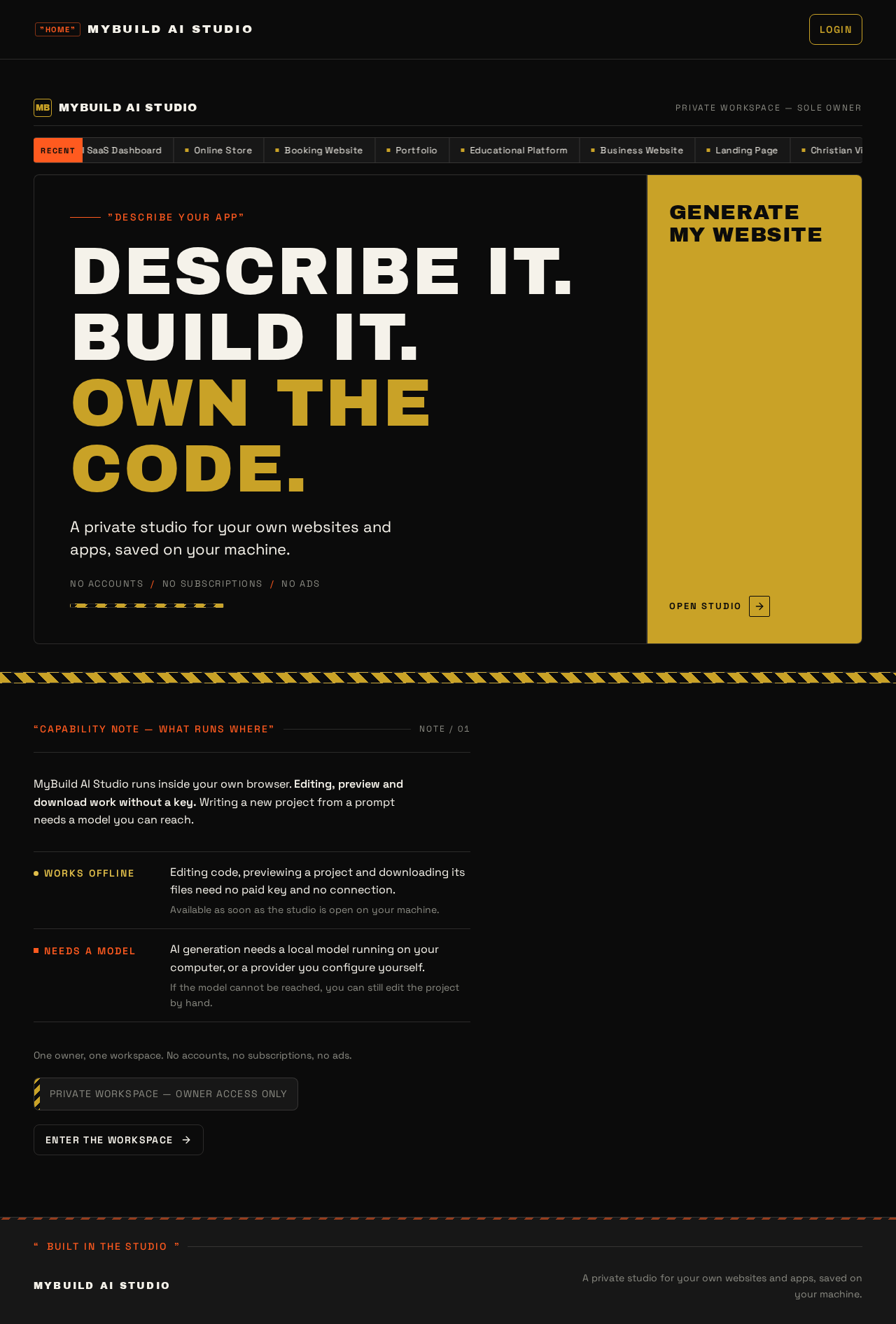
"Describe your app"
Describe it.Build it.Own the code.
A private studio for your own websites and apps, saved on your machine.
“Capability Note — What Runs Where”
Note / 01MyBuild AI Studio runs inside your own browser. Editing, preview and download work without a key. Writing a new project from a prompt needs a model you can reach.
- Works offline
Editing code, previewing a project and downloading its files need no paid key and no connection.
Available as soon as the studio is open on your machine.
- Needs a model
AI generation needs a local model running on your computer, or a provider you configure yourself.
If the model cannot be reached, you can still edit the project by hand.
No comments yet. Be the first!