
DAP

byMonish Raj

Create a polished Web application.

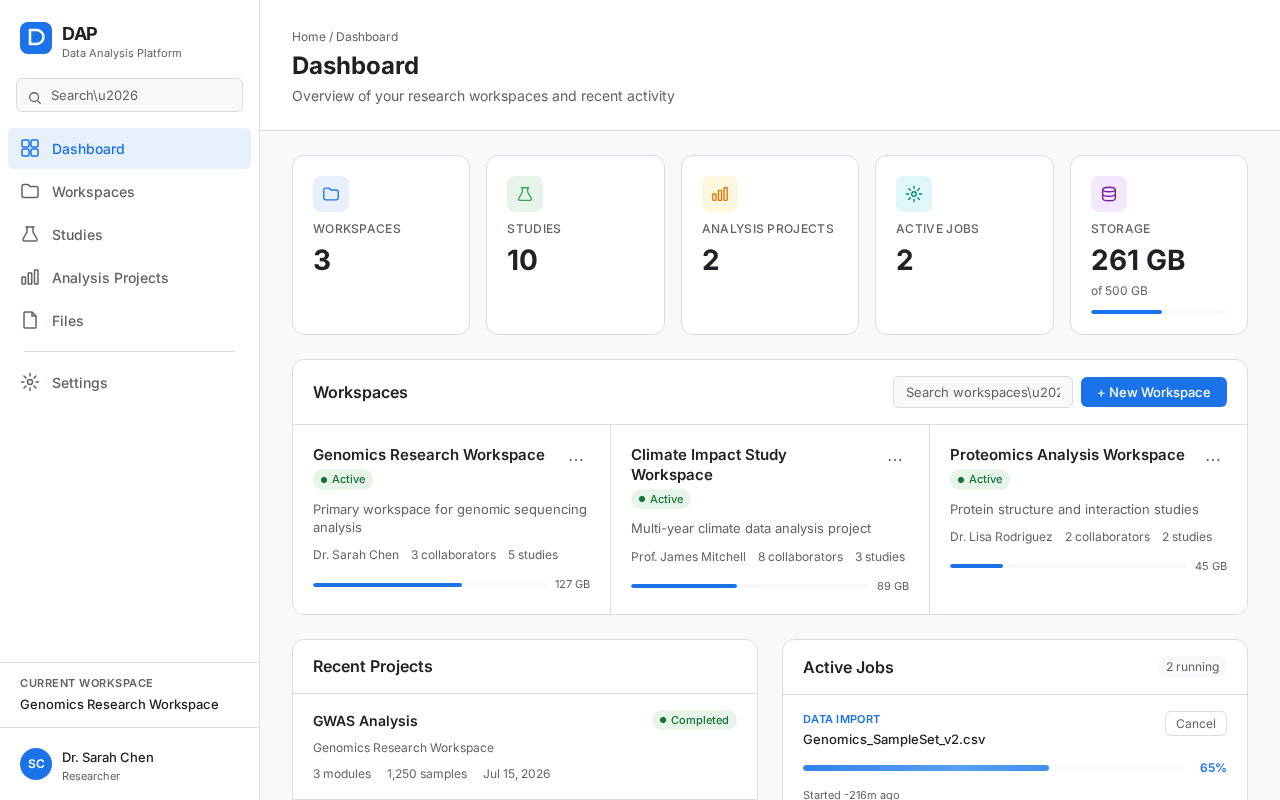
Main Web Interface
Main Web Interface

Comments (0)

No comments yet. Be the first!

System Requirements

System Requirement Document
Page 1 of 5

System Requirements Document

Introduction

This document outlines the system requirements for creating a polished web application as requested by the user. This document outlines the system requirements for the Data Analysis Platform (DAP), a scientific data analysis web application designed for researchers, scientists, analysts, and organization administrators. The application is intended to manage research workspaces and studies, import and organize datasets, build queries, configure analysis projects, run analysis modules, inspect results, manage files, and administer access.

System Overview

DAP is a production-quality desktop web application that provides a professional scientific enterprise experience. It is designed to support scientific data workflows with clear information hierarchy, strong data visibility, controlled permissions, and traceability. The application is structured around a conceptual hierarchy of entities: Organization → Users/Groups → Workspaces → Studies → Data Sources/Data Tables → Query → Analysis Project → Analysis Modules → Snapshots/Results → Files/Jobs.

Functional Requirements

As an End User

  • I want to interact with a polished web interface that provides a seamless and engaging user experience.
  • I want the main web interface to serve as the primary interaction surface for the application.
Page 2 of 5

As a User

  • I want to navigate the application using a persistent desktop application shell with a clean vertical sidebar for primary navigation.
  • I want to see breadcrumbs, current workspace/study context, page title, and optional page description in the global header.
  • I want to use a DAP overview dashboard to view recent workspaces, studies, analysis projects, active jobs, recent activity, and storage/data overview.
  • I want to create and manage workspaces, including listing, searching, filtering, sorting, and performing bulk actions.
  • I want to create a new workspace with fields for name, description, tags, and team members, and receive feedback upon creation.
  • I want to view workspace details, including name, description, owner, collaborators, studies, data, tags, and actions.
  • I want to manage studies within workspaces, including listing, searching, filtering, sorting, and performing actions like open, rename, delete, and add tags/users.
  • I want to create a new study with a guided flow for study overview, data source selection, and custom attributes.
  • I want to select data sources with options for importing curated data, uploading custom data, or using existing workspace data.
  • I want to import data from a hub with search, filter, and review capabilities, and track the import process.
  • I want to upload custom data with drag-and-drop support, automatic upload initiation, and clear upload progress.
  • I want to validate custom data uploads with a validation screen showing file details, detected fields, and data quality issues.
  • I want to view data tables after import/processing, with details like table name, description, rows, columns, and status.
  • I want to use a query builder to filter sample metadata, generate SQL queries, and preview results.
  • I want to configure analysis modules per data table, with separate configurations for each table.
  • I want to create and launch analysis projects with a review of data source, query, samples, project name, and selected modules.
  • I want to manage analysis projects, including viewing project details, status, owner, data table, sample count, and actions.
  • I want to use an analysis studio as the main analysis workspace, showing configuration, datasets, modules, results, and history.
  • I want to manage snapshots within analysis projects, including viewing, renaming, and deleting snapshots.
  • I want to use a file browser to browse, upload, download, rename, delete, and search files.
  • I want to manage jobs for background processes, including viewing job details, status, and related resources.
  • I want to receive notifications for analysis completion, import completion, upload completion, validation failure, and access requests.
  • I want to administer organization-level settings, including managing members, groups, permissions, and audit logs.
  • I want to use a global search to find workspaces, studies, analysis projects, and files.
  • I want to see proper empty, loading, and error states for various screens and actions.
  • I want to receive success feedback for actions like workspace creation, data import, and file upload.
  • I want to use confirmation dialogs for destructive actions like deleting workspaces, studies, and files.
  • I want to ensure accessibility with sufficient contrast, keyboard navigation, and meaningful button text.
  • I want the application to be optimized for large desktop screens with responsive behavior for smaller widths.
  • I want to filter data using specific criteria such as Treatment Group to refine my analysis.
Page 3 of 5

User Personas

  • Researcher/Scientist: Engages in data analysis, manages studies, and configures analysis projects.
  • End User: The primary user interacting with the web application.
  • Analyst: Focuses on data querying, analysis module configuration, and result inspection.
  • Organization Administrator: Manages workspaces, user access, and organizational settings.

Core User Flows

  1. Create New Analysis Project:

    • Navigate to Analysis Projects.
    • Select Data Source (Import Data, Import Custom Data, or Use Existing Workspace Data).
    • Process/Validate Data if importing.
    • Use Query Builder to filter samples.
    • Configure Modules for each Data Table.
    • Review Configuration and Create & Launch Analysis.
    • Access Analysis Studio for results and further actions.
  2. Manage Workspaces:

    • Navigate to Workspaces.
    • Create a new workspace with required fields.
    • View and manage workspace details and studies.
    • Perform actions like adding users, renaming, and deleting.
  3. File Management:

    • Access File Browser.
    • Upload files with drag-and-drop or browse.
    • Manage files with actions like rename, delete, and search.
Page 4 of 5

Visuals Colors and Theme

  • Use the existing DAP visual language with a clean, professional, scientific, modern, and minimal design.
  • Primary color: Existing DAP primary brand color.
  • Supporting semantic colors for status, validation, alerts, and feedback.

Signature Design Concept

  • Clean enterprise SaaS with a focus on scientific research software and modern data platform aesthetics.

Interaction Model & Motion Direction

  • Use clear, progressive disclosure with meaningful animations only during actual background processes.

Non-Functional Requirements

  • Ensure accessibility following WCAG AA principles.
  • Optimize for large desktop screens with responsive behavior for smaller widths.

Tech Stack

  • The tech stack is not specified; however, the application should be structured for potential backend/API integration.

Assumptions and Constraints

  • The application is a desktop web application optimized for scientific data analysis workflows.
  • The design should avoid generic SaaS dashboard aesthetics and focus on scientific enterprise needs.
Page 5 of 5

Glossary

  • DAP: Data Analysis Platform.
  • Workspace: A container for related research studies and collaborators.
  • Study: A research project within a workspace.
  • Data Source: Origin of data used in analysis.
  • Query Builder: Tool for filtering sample metadata and generating SQL queries.
  • Analysis Project: A configured set of data and modules for analysis.
  • Snapshot: A saved state of analysis results.
  • File Browser: Interface for managing files within the application.
Main Web Interface design preview
Main Web Interface: User accesses the web application
Main Web Interface: User navigates and interacts with the interface
Main Web Interface: User cannot interact with the interface
Main Web Interface design preview
Main Web Interface: User accesses the web application
Main Web Interface: User navigates and interacts with the interface
Main Web Interface: User cannot interact with the interface