scamshield
 John Agostinelli
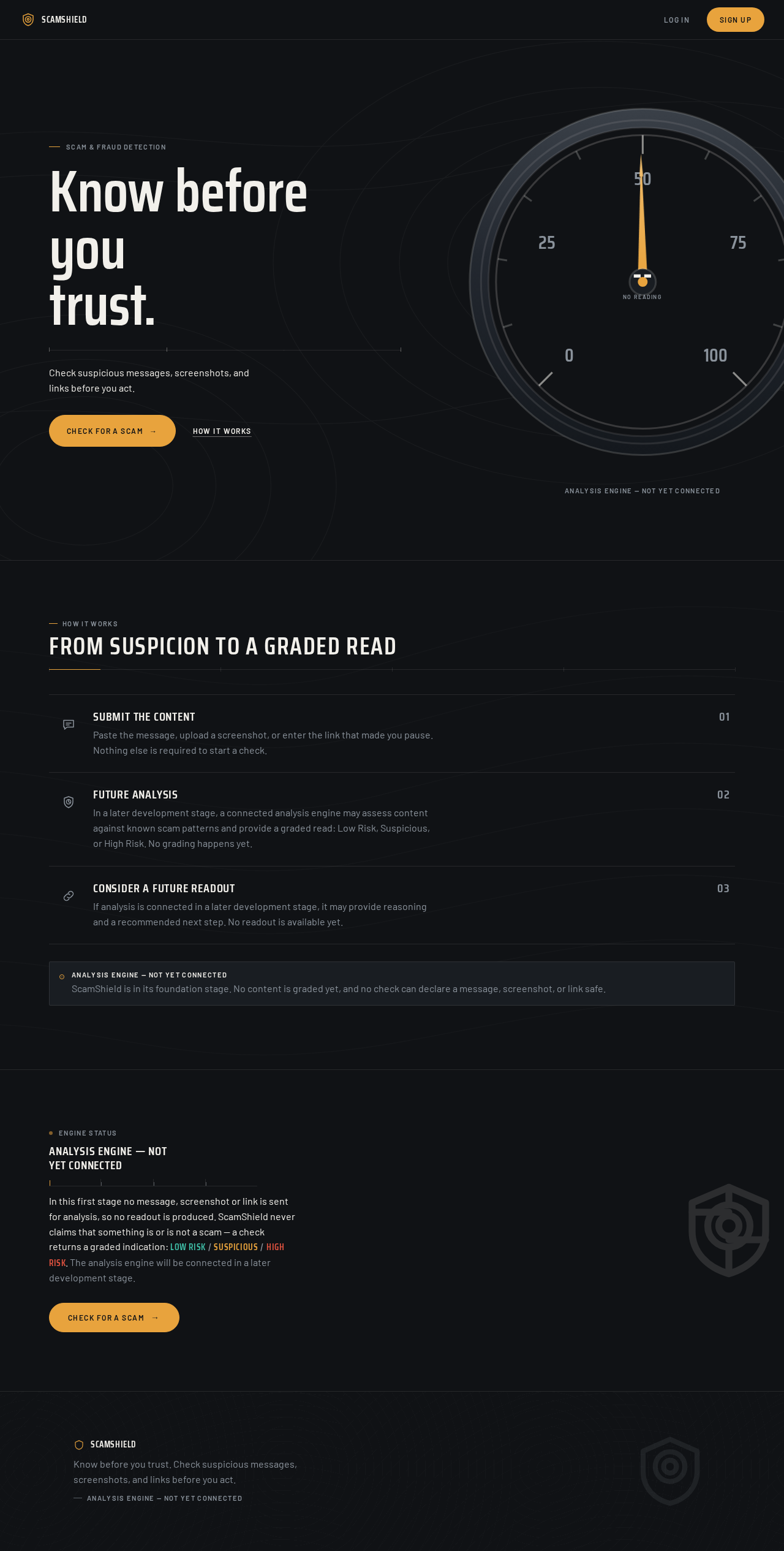
Build the first version of a professional mobile-first web application called "ScamShield". ScamShield is an AI-powered scam and fraud detection platform that helps users identify potentially fraudulent messages, screenshots, and website links. IMPORTANT: - Do NOT build the entire application yet. - For this first stage, build only the frontend foundation and navigation. - Do not connect any AI API yet. - Do not add payment/subscription functionality yet. - Do not create fake scam detection results. - Keep the code clean, modular, responsive, and easy to extend later. BRAND: Name: ScamShield Tagline: "Know before you trust." Style: Modern, trustworthy, professional cybersecurity/fintech appearance. Use a clean interface with strong readability and accessible contrast. The design should feel like a serious security product, not a gaming app. CREATE THESE SCREENS: 1. Landing/Home screen - ScamShield logo/name - Tagline: "Know before you trust." - Short explanation: "Check suspicious messages, screenshots, and links before you act." - Primary button: "Check for a Scam" - Secondary button: "How It Works" - Professional security-focused visual design 2. Dashboard Show three main checking options: - Check a Message - Check a Screenshot - Check a Link Also show: - Recent Checks - Protection Status - Upgrade to Premium section 3. Check Message screen - Large text input area - Placeholder: "Paste a suspicious message here..." - Button: "Analyze Message" - For now, the button should NOT perform real AI analysis. - Display a clear placeholder indicating that the analysis engine will be connected in a later development stage. 4. Check Screenshot screen - Upload image button - Drag-and-drop area where appropriate - Preview uploaded image - Button: "Analyze Screenshot" - Do not implement OCR or AI yet. 5. Check Link screen - URL input - Button: "Check Link" - Do not implement real URL analysis yet. 6. Results screen Create the UI structure only. It should eventually display: - Risk level - Risk score - Warning indicators - Explanation - Recommended action - Report Scam button Do not generate fake analysis results. 7. Profile/Settings screen Include: - Account information - Subscription status - Privacy settings - Notification settings - Logout NAVIGATION: Create a simple mobile-friendly bottom navigation: - Home - Check - History - Profile Also make the application responsive on desktop. SECURITY AND PRIVACY: - Do not expose API keys in frontend code. - Do not collect unnecessary personal information. - Do not claim that the application can guarantee that something is safe. - The future system should use language such as "Low Risk", "Suspicious", or "High Risk" rather than guaranteeing that a message is or is not a scam. TECHNICAL REQUIREMENTS: - Use a clean component-based architecture. - Keep frontend components reusable. - Use proper loading, error, and empty states. - Use accessible buttons, labels, and form controls. - Make the interface polished enough for a real startup MVP. - Do not add unnecessary features that were not requested. At the end, make sure the application runs successfully and that all navigation links work.

Comments (0)
Sign in to leave a comment
Scam & Fraud Detection
Know beforeyoutrust.
Check suspicious messages, screenshots, and links before you act.
Analysis engine — not yet connected
From suspicion to a graded read
Submit the content
Paste the message, upload a screenshot, or enter the link that made you pause. Nothing else is required to start a check.
Future analysis
In a later development stage, a connected analysis engine may assess content against known scam patterns and provide a graded read: Low Risk, Suspicious, or High Risk. No grading happens yet.
Consider a future readout
If analysis is connected in a later development stage, it may provide reasoning and a recommended next step. No readout is available yet.
ScamShield is in its foundation stage. No content is graded yet, and no check can declare a message, screenshot, or link safe.
Analysis engine — not yet connected
In this first stage no message, screenshot or link is sent for analysis, so no readout is produced. ScamShield never claims that something is or is not a scam — a check returns a graded indication: Low Risk/Suspicious/High Risk. The analysis engine will be connected in a later development stage.
Scam & Fraud Detection
Know beforeyoutrust.
Check suspicious messages, screenshots, and links before you act.
Analysis engine — not yet connected
From suspicion to a graded read
Submit the content
Paste the message, upload a screenshot, or enter the link that made you pause. Nothing else is required to start a check.
Future analysis
In a later development stage, a connected analysis engine may assess content against known scam patterns and provide a graded read: Low Risk, Suspicious, or High Risk. No grading happens yet.
Consider a future readout
If analysis is connected in a later development stage, it may provide reasoning and a recommended next step. No readout is available yet.
ScamShield is in its foundation stage. No content is graded yet, and no check can declare a message, screenshot, or link safe.
Analysis engine — not yet connected
In this first stage no message, screenshot or link is sent for analysis, so no readout is produced. ScamShield never claims that something is or is not a scam — a check returns a graded indication: Low Risk/Suspicious/High Risk. The analysis engine will be connected in a later development stage.
No comments yet. Be the first!